Shared event support inbox access and security checklist
An event support address may receive lost-ticket requests, refund questions, accessibility needs and payment problems. It is tempting to hand several people one password for fast coverage, but the real task is to give approved workers the access they need, keep replies traceable and ensure the organization can recover the queue when a person or vendor leaves. The leading Google result is a shared-mailbox access checklist; use its request–approval–test structure with event-specific coverage and closeout.
Boletolibre editorial team
Published
Identify the actual inbox model and owner
Download the editable event support inbox access register (Markdown, English)
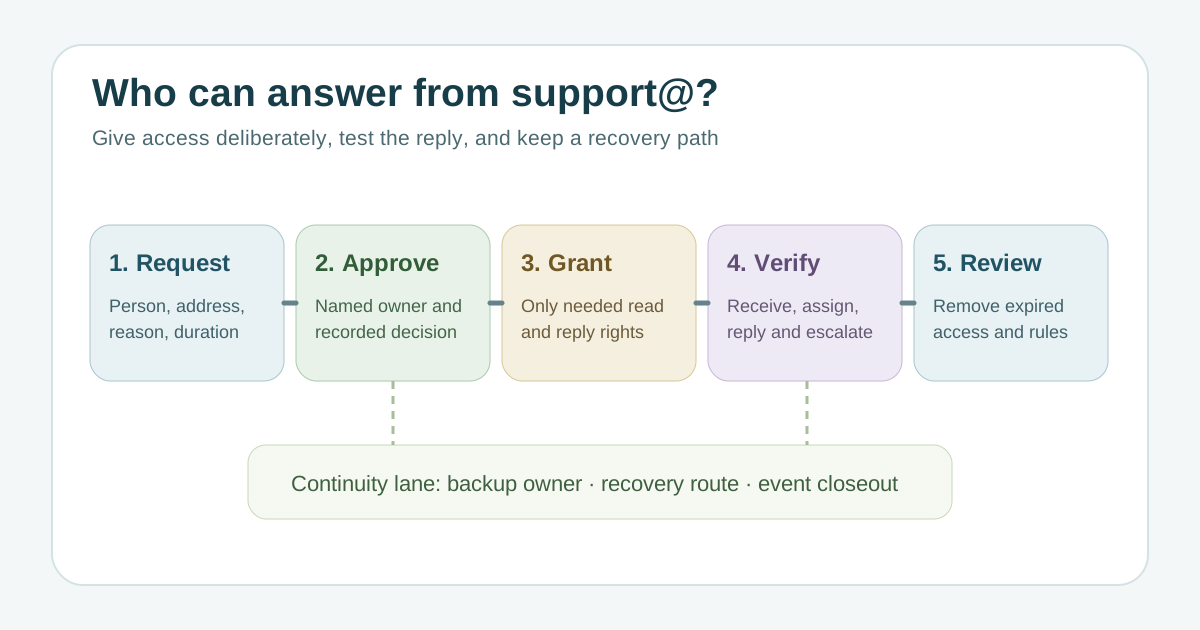
First record the published address, platform, mailbox or group type, event edition and business owner. A Microsoft 365 shared mailbox, Gmail delegated mailbox, Google Group Collaborative Inbox and helpdesk queue do not have identical rights or history. Do not treat an alias or distribution list as a shared work queue without checking how messages are assigned and replied to. Name an organization-controlled administrator, a support lead and a backup; store recovery instructions in an approved private location rather than in the public worksheet.[1][2][3][4]
Approve each person and permission separately
The request should name the person, business reason, exact address, read or manage need, reply identity and end date. Have the mailbox owner approve it in a durable ticket. In Microsoft 365, Full Access does not itself grant Send As; those are separate rights, and new shared mailboxes have direct sign-in blocked by default. Check the actual platform before changing a sign-in setting. Google delegation and Collaborative Inbox use different permission models, so do not copy Microsoft role names into them. Use individual authenticated accounts and grant only what the coverage shift requires.[1][2][3][4]
Verify the real support workflow
Send a harmless test request from a team-controlled account. Confirm it reaches the queue, an authorized worker can see or assign it, the reply shows the intended public sender, and the test recipient receives it. Check the path for lost tickets, refunds and accessibility requests without exposing actual attendee data in the test. Review forwarding, filters and auto-replies so a vendor exit or an old rule does not divert conversations. Record who tested each path and what failed; an admin console showing “permission granted” is not enough.[1][2][3][4]
Plan coverage and recovery before an absence
List support hours, escalation and who covers the inbox when the primary person is offline. The backup needs a tested route to the messages and to the person authorized to change permissions; merely naming a backup is not access. Record how the organization regains control if the mailbox owner, ticketing agency or support tool becomes unavailable. Keep ownership of the public address and DNS/mail configuration in the organization’s domain inventory. Do not share emergency credentials in the worksheet.[1][2][3][4]
Review access at event changes and closeout
Set a review trigger for staffing changes, temporary shift coverage, vendor departure and event closeout. Remove expired delegates and send rights, inspect forwarding and automation rules, and decide how the mailbox remains reachable for late ticket or refund questions. Apply the organization’s retention policy to conversation history. Document approval, grant, verification and removal with dates so the next event team can audit the handoff without reading private messages unnecessarily.[1][2][3][4]
Sources and further reading
- Shared Mailbox Access Checklist for IT SupportIT Support Group · Accessed
- Create a shared mailboxMicrosoft Learn · Accessed
- Tips to optimize your Gmail inboxGoogle Workspace Learning Center · Accessed
- Make a group a Collaborative InboxGoogle Workspace Learning Center · Accessed