Door ticket sales checklist: from walk-up payment to admission
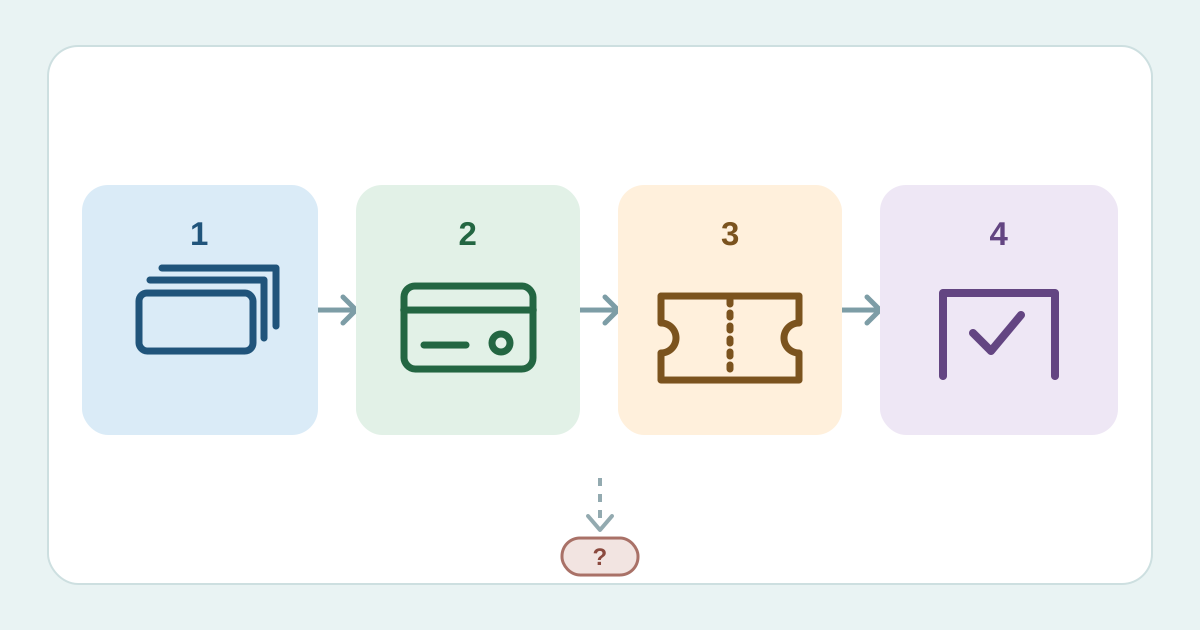
A walk-up order crosses four states: an available place, a recorded payment result, an issued entitlement, and a completed check-in. When any state is unclear, a queue can turn one small exception into several conflicting records. This checklist gives the door-sales lead and admission lead one shared handoff, from opening stock to the closing report.
Boletolibre editorial team
Published
Confirm the stock available at the door
Download the one-page opening and closing checklist (Markdown, English)
Name the event date, session and ticket types that can be sold at this entrance. Record the opening stock for each, the system that owns that count, and the person allowed to change it. Include complimentary or partner tickets only if they draw from the same admission pool. If another channel holds separate stock, keep that allocation out of the door count until its owner releases it. Decide who can pause sales when availability cannot be verified. If your public event page is on Boletolibre.com, compare its ticket and door-sale information with this approved plan. The editable card below makes these opening decisions visible to the next shift.
Set up the sale and payment path
Give the seller the right account access, a working device and a defined receipt or ticket-delivery route. Confirm each accepted payment method and who actually collects it. Platform setup differs: Planning Pod enables at-the-door sales for selected ticket types; Eventbrite documents ticket availability and payment methods in Organizer; Ticket Tailor offers sales from its check-in app. Treat those as provider examples, then verify the settings and regional eligibility of the system you use. Put an exception owner next to the sales point so a failed payment or missing ticket has a clear destination.[1][2][3]
Rehearse one complete walk-up order
Before opening, use an approved test order or a provider-documented reversible procedure. Choose a door ticket and correct session, record the payment outcome, find the issued ticket or access record, and check its admission result on the intended device. Then clear the test state as your provider permits. Try one declined or unfinished payment and one wrong-session case; confirm neither silently becomes a valid admission. Ticket Tailor says its check-in app must be online to create in-person orders, so test the actual connection where sellers will stand. Record the observed results, not just a tick beside 'device works'.[4]
Keep payment, ticket and entry states distinct
For each walk-up buyer, verify the session and stock before taking payment. Capture the order reference, method and result; follow your provider's confirmed procedure before issuing or handing over an entitlement. A payment recorded in a ticketing app is not always money processed by that app. Eventbrite explains that an offline payment can create an order while the organizer collects funds outside Eventbrite payouts; Ticket Tailor likewise describes recording an external payment. Keep a pending or failed payment in the exception path. Admission staff should check the issued entitlement and record entry separately from the sale.[2][3]
Close the shift with one reconciled record
At close, stop the sales route and save its final stock and order reports. Compare opening stock, issued door tickets, voids or refunds, remaining availability, and any unresolved hold under the actual platform rules. Then compare recorded payment methods with funds collected outside the platform; give each difference an owner and next action. Hand admission the unresolved order and check-in list, because a sold ticket is not proof that its holder entered. Sign off the shift with both leads, report location and time. Reopen sales only after the stock owner has verified any carried-over balance.
Sources and further reading
- Setting up and managing at-the-door sales for a ticketPlanning Pod Help Center · Accessed
- How to sell tickets at your event with Eventbrite OrganizerEventbrite Help Center · Accessed
- How to sell tickets in person using the check-in appTicket Tailor Help Centre · Accessed
- Quick troubleshooting tips for in-person ordersTicket Tailor Help Centre · Accessed