Find GA4 site-search terms and fix event information gaps
If a website already offers internal search, its query log can show where attendees struggle to find an answer. First prove that GA4 records real result views; then review terms alongside the live results instead of treating every frequent phrase as a missing page.
Boletolibre editorial team
Published
Separate internal search from Google Search
Download the site-search term review sheet (English Markdown)
This method applies only to a site with an internal search interface. Pick one event edition, language and date window, and write down the attendee question you want the search to answer: venue access, schedule changes, accessible entry or another concrete task. If there is no internal search, a search-term report cannot reveal what visitors tried to type; use navigation review, support questions or a separate usability test instead.
The GA4 Search term dimension described here comes from searches within the website. It is not the Google Search Console Queries report, which describes queries that surfaced your site in Google Search. Mixing them leads to the wrong conclusion: a phrase typed after arrival often signals a discovery or results-quality issue on your own site, while a Google query reflects off-site discovery.[7][1]
Check what the site actually sends to GA4
Open the site's search, submit a harmless test phrase and inspect the resulting URL. GA4 enhanced measurement can send `view_search_results` when a search-results page appears with a recognized URL query parameter: by default `q`, `s`, `search`, `query` or `keyword`. The event carries `search_term`, which populates the Search term dimension. In the web data stream, check whether enhanced measurement and Site search are enabled and whether the site's actual parameter is configured.[1]
Do not assume this happens for autocomplete, a term stored only in the URL path, a form that never changes the URL, or an app-like route transition. Ask the developer or measurement owner how that search implementation emits a result-view event, then verify the actual payload. Do not add a second manual event while automatic collection is already firing. Before collecting user-entered terms, design a way to prevent personal data from reaching GA4; Google specifically warns that search boxes can contain names, emails and other identifiers.[1][6]
Prove one safe search in DebugView
Enable DebugView for your own device, submit one non-personal test phrase such as `venue map`, and inspect the resulting `view_search_results` event and its `search_term` value. Record whether one search produces one expected result-view event, the correct language, and the correct term. If the event is absent, check the URL parameter, enhanced-measurement setting, consent state and tag path with the measurement owner. If it fires twice, inventory automatic and manual senders before interpreting counts.[3][1]
DebugView is for checking collection, not for estimating how many attendees searched. GA4 reports may take 24–48 hours to settle. Do not call a blank report a zero-demand result immediately after setup. Use a complete, comparable period and record when the report was extracted. Keep the synthetic test phrase out of editorial conclusions.[5][3]
Build a reproducible search-term table
In GA4 Explore, start a Free-form exploration. Import the Search term dimension, Event count metric and Event name dimension. Put Search term in Rows and Event count in Values; filter Event name to exactly `view_search_results`. Set the event window and web stream deliberately, then note the extraction date. This produces counts of result-view events by recorded phrase, not a count of distinct people or answered questions.[4][2]
Export or transcribe a small review set. Keep the original phrase, language, count and URL/result-page pattern. Normalize obvious variants for review—`parking`, `car park`, a translated equivalent—but retain the original rows and counts so grouping is reversible. A repeated search can come from the same visitor, and a popular term may simply describe a well-used feature. Do not infer failure from frequency alone.[4][2]
Classify terms by the result a visitor sees
For each candidate term, repeat the query on the live site in the matching language and event edition. Note whether a correct result appears in the first few visible choices, whether the title points to the current edition, and whether the answer is available after the click. Classify it as easy to find, relevant page buried, irrelevant or outdated results, answer absent, or ambiguous wording. A no-results claim needs a direct result-page check or separately verified zero-result instrumentation; `view_search_results` by itself does not say the result count was zero.
Keep the review privacy-aware. Exclude personal names, email addresses and other identifying strings from screenshots, worksheets and analytics collection. Google Analytics policy requires that personally identifiable information not be sent to GA4, including through user-entered search terms and URLs. A sanitized summary such as “accessibility request” is enough for a content decision; the raw identifying term is not needed.[6]
Work through an event-information example
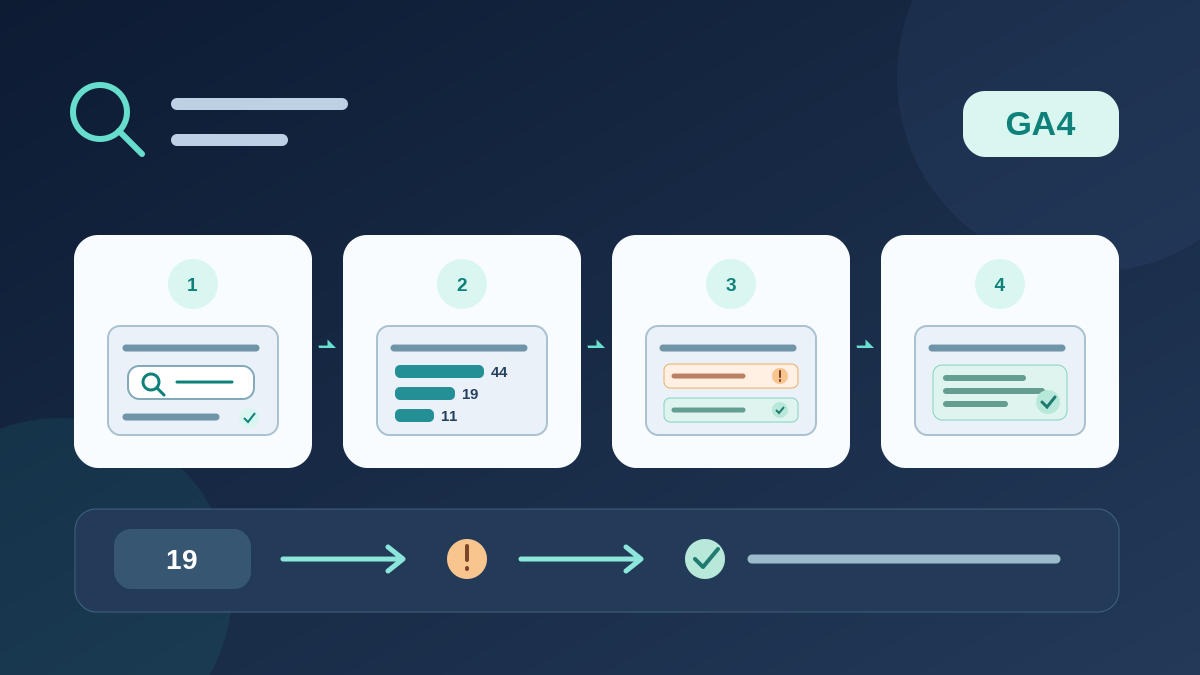
Suppose a seven-day term table contains 44 result views for `parking`, 19 for `accessible entrance` and 11 for `Friday schedule`. These are hypothetical event counts, not 74 unique people. Replay each query: perhaps parking returns the current travel guide, accessible entrance returns an outdated edition, and Friday schedule returns no useful current page. The first term may need no new content; the second needs result ranking or edition labeling; the third may need a clear schedule answer.
The practical worksheet pairs each term with a live-results observation, the attendee task and a proposed owner. It distinguishes `no useful result` from `no result` and asks whether an existing page can be improved before creating another URL. A low-count term can still matter if it concerns safety or accessibility. Use count to order the review queue, not as the only value judgment.
| Search term | Result views | Live result | Decision |
|---|---|---|---|
| parking | 44 | Current travel guide visible | Check answer; likely retain |
| accessible entrance | 19 | Old edition appears first | Fix edition label/ranking |
| Friday schedule | 11 | No useful current page | Add current schedule answer |
Make one fix and review the same question again
Change one thing that matches the observed failure: improve a result title, retire an outdated entry, add a missing answer to the current page, or link it from the relevant navigation. Record the affected URL, edition, language, owner and publication time. Then replay the same query and attendee task on the live site, including mobile if that is the primary context. The immediate acceptance test is a useful result and a findable answer.
After enough complete reporting time, compare the same term family, language, event phase and date-window length. Search volume may fall because the answer is easier to see before a search—or because audience size changed—so it is not a standalone success metric. Keep the measured event count next to the observed result quality and any support feedback. If tracking is unverified, label the trend inconclusive rather than crediting the content change.[4]
Sources and further reading
- Enhanced measurement eventsGoogle Analytics Help · Accessed
- Search term dimensionGoogle Analytics Help · Accessed
- Monitor events in DebugViewGoogle Analytics Help · Accessed
- Free-form explorationGoogle Analytics Help · Accessed
- Data freshnessGoogle Analytics Help · Accessed
- Best practices to avoid sending personally identifiable informationGoogle Analytics Help · Accessed
- GA4 Queries reportGoogle Analytics Help · Accessed