WordPress event website mobile menu not opening: diagnose the published visitor path
When the phone menu fails on an event website, visitors may lose the route to tickets, arrival details or the programme while the desktop header looks fine. Start with the exact published failure rather than changing menu settings at random. This guide is for WordPress sites; a different website builder has different controls.
Boletolibre editorial team
Published
1. Capture the visitor failure and keep a direct route
Download the mobile-menu symptom and release worksheet (Markdown, English)
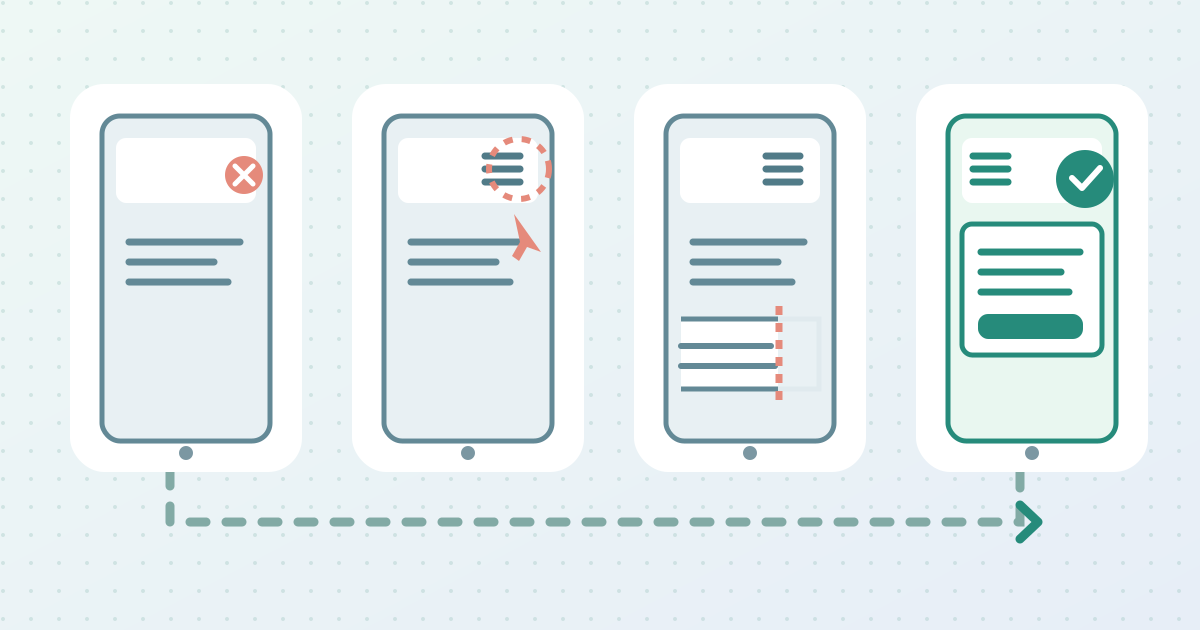
Open the exact public URL on a real phone while signed out. From a fresh load, note whether the icon is absent, the first tap does nothing, the panel opens behind content, or a submenu cannot be reached. Record device, browser, page, width, time and whether the failure begins only after scrolling. Repeat on a second page using the same header. An editor preview or desktop view is not proof of the published phone behavior.
Keep the event name, date, venue and ticket action discoverable through a direct text link on the affected page or an approved alternate route while the menu is being repaired. Check that this link points to the current event and does not send visitors to an old edition or draft. Do not publish unreviewed navigation changes to rescue one link; preserve the failing view and last known working time for the site maintainer.
2. Identify the component that owns the header
Find out whether the header uses the WordPress Navigation block, a classic theme menu location, an Elementor header widget or a custom add-on. The controls differ. In a block theme, inspect the Navigation block and its selected menu and overlay setting. In a classic theme, inspect the menu assigned to the mobile or primary location defined by that theme. In Elementor, identify the exact published header and widget before using its breakpoint or dropdown controls.[1][2][3]
Record the responsible theme, builder or add-on, current versions, header template, menu assignment and last change. If one page works and another fails, compare their templates and header display conditions before editing a global menu. A site can have a correct menu structure but use the wrong header on one page. Keep a copy of the current settings and a recovery point; do not switch multiple menu systems at once.[1][2][3]
4. If the button is visible but inert, inspect the first interaction
When the icon is visible but the first tap does nothing, compare the first tap with a second tap and with a tap after scrolling. Try the public page signed out, not only while logged in. Check whether a banner, sticky header or transparent element covers the button. A visual button can still be unreachable if another layer receives the touch. Record the exact step and, if safe, a short recording without attendee data.
Ask the maintainer to inspect the browser console and failed script requests for the same page. A missing menu dependency or an error earlier in the page can stop the toggle. Do not infer the cause from one warning, paste a second menu script into the page, or update plugins blindly. Compare the last known working version and the current published assets. If the only change was a performance setting, isolate that hypothesis in staging rather than disabling live checkout, forms or security plugins.
5. If the panel opens badly, check clipping and submenu behavior
If the panel opens but sits behind content or is cut off, inspect the owning header container, overflow and stacking context. Raising the panel’s stacking value alone may not let it escape a clipping parent. Compare before and after scrolling; sticky headers can change the container that controls the overlay. Correct the responsible layout control in staging, then check that opening the menu does not cover essential event text irretrievably.[6]
Test a top-level link and its submenu separately. Some menus use the label as a destination and a nearby arrow to expand children; others use the label as the toggle. Do not assume desktop hover represents phone touch. The programme, venue and ticket links should be reachable by touch and keyboard, with a visible focus indicator and a way to close the menu. W3C’s menu guidance treats keyboard-operable submenus as part of usable navigation.[6]
6. Compare the published and cached views
A logged-in editor, staging preview and public phone can receive different files. Compare the same failing URL in a fresh signed-out browser and on another network, then record whether the menu fails only in one view. If the page uses WP Rocket’s Delay JavaScript Execution, its documented behavior applies to cached or optimized pages and waits for interaction. That is a conditional lead, not proof that WP Rocket caused this site’s failure.[5]
On a protected staging copy, preserve current optimization settings and change one relevant option. If the menu begins working, identify the required script or dependency and use the smallest provider-supported exclusion, then restore unrelated optimization. Do not leave broad exclusions or a global cache purge as the supposed repair. If the issue is simply an old cached header, compare the published version and cache layer before refreshing the affected output; a purge cannot fix wrong menu configuration.[5]
7. Make one controlled repair in staging
Write a one-line diagnosis in the worksheet: symptom, owning component, evidence, proposed change and rollback. Have the owner approve it. Reproduce the same first-tap or missing-icon failure on staging, apply one scoped change, and retest there. If the repair requires updating a theme, builder or plugin, use a compatible supported version and confirm the site’s backup and recovery route first. Avoid live trial-and-error when the shared header also serves checkout, registration or support pages.
Compare a working page with the originally broken one. The repair must preserve the intended menu structure, not just make the icon visible. Check that each menu destination still reaches the current event page and that the ticket link is not redirected to an old campaign. If the narrow change fails, restore the test baseline and hand the recorded evidence to the theme, builder or hosting owner; do not pile on CSS overrides and extra scripts.
8. Verify the full event journey after publication
After publication, repeat the original test on a real phone from a fresh signed-out load. The first intentional tap should open the panel; close and reopen must work, and page scrolling should return after closing. Follow a top-level link, expand a submenu and open the current ticket, programme, venue and help destinations. Check the same header on another page and after scrolling. Repeat at narrow width, landscape and zoom so controls remain reachable.[6]
Use a keyboard to reach the toggle, open the menu, follow a link and close it without losing visible focus or becoming trapped. Inspect the final public cached version rather than stopping at the editor preview. Log device, browser, URL, time, repair owner, changed setting, pass or fail and any untested condition. If the menu still fails, retain the direct event/ticket route and reopen the incident with the specific evidence rather than claiming the whole site is fixed.[6]
Sources and further reading
- Navigation blockWordPress.org Documentation · Accessed
- Managing Classic Theme MenusLearn WordPress · Accessed
- How to resolve common mobile layout issues in ElementorElementor Help Center · Accessed
- Delay JavaScript executionWP Rocket Knowledge Base · Accessed
- Menus TutorialW3C Web Accessibility Initiative · Accessed