Hard vs. soft email bounces: a report-to-action guide
A bounce says that an email was not delivered, but the label alone does not tell you whether to retry, correct an address or stop sending. The useful evidence is the sending provider’s report: failure class, diagnostic reason, suppression state and message. Use this guide for a campaign or operational mailing. Keep a recipient’s contact record in the sending system; the downloadable triage card uses case IDs rather than addresses.
Boletolibre editorial team
Published
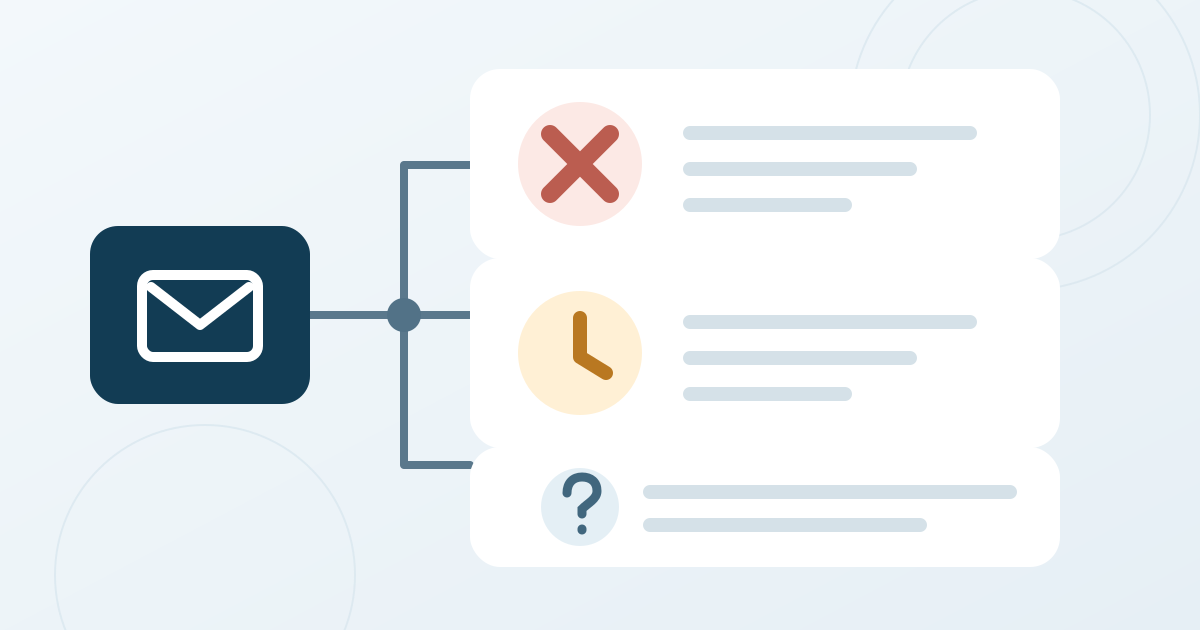
1. Separate the three reported states
Download the bounce triage card (Markdown, English)
Mailchimp describes a hard bounce as a permanent reason an email cannot be delivered and a soft bounce as a typically temporary issue. Amazon SES uses Permanent, Transient and Undetermined in bounce notifications. Those are provider classifications, not a promise that every valid address always lands in the same category. Mailchimp also notes that a valid address can occasionally hard-bounce. Read the provider’s exact status and diagnostic text before changing a contact.[1][2]
| Report state | What it can mean | First safe action |
|---|---|---|
| Hard or permanent | The provider reports a permanent rejection or a blocked attempt under its policy; inspect the subtype to learn which. | Stop routine sends; inspect the reason and suppression record. |
| Soft or transient | Delivery failed under a condition that may change. | Check whether the provider is still retrying or has stopped. |
| Unknown or undetermined | The provider lacks enough evidence to classify the failure. | Keep the case open and inspect the diagnostic details. |
2. Read the reason before choosing a remedy
Open the report for the actual send. Record the campaign or message ID, attempted time, affected stream, provider label, recipient-server reason if supplied, and whether the address is cleaned or suppressed. A full mailbox, unavailable server, message-size problem or receiving policy can appear among soft-bounce reasons in Mailchimp; a nonexistent address or permanent block can produce a hard bounce. The visible text is evidence to investigate, not an instruction to override a block. Check complaints, opt-outs, messages never queued and delivered mail a person cannot find against the provider’s exact event type and subtype. SES can report an unsubscribed or suppressed recipient under Permanent even when delivery was not attempted; do not treat that label alone as proof the address is invalid.[1][2]
3. Act on the address, not the label alone
For a hard bounce, pause further sends to that address and follow the sending platform’s suppression rules. Confirm any proposed correction through an authorized contact route before editing the address; changing one letter by guess can send private material to someone else. For a soft bounce, check the platform’s retry state and whether the cause has cleared before considering another send. SES says it retries transient failures for a period and normally reports a soft bounce after it stops trying; Mailchimp can eventually clean repeatedly soft-bouncing contacts. Do not impose either provider’s retry count on another system.[1][2]
4. Verify the outcome and close the case
For an undetermined result, leave it unresolved until the mail owner reviews available diagnostic codes or the recipient domain’s response. If several addresses at one domain fail together, look for a shared sending or receiving issue instead of editing each contact. Record who owns the case, what was changed and what observation would prove progress. A later provider delivery event means acceptance by a receiving server, not that a person saw the message. For a time-sensitive notice, update the authoritative web page or support channel while the email problem is investigated.[2][3]
Close with the observed state: corrected address verified, provider retry succeeded, alternate contact route completed, or suppression retained. Preserve the original bounce reason and the decision date. The worksheet separates the message failure from the contact decision so a future campaign does not silently repeat the same error. If a valid contact continues to hard-bounce, escalate with the provider’s own diagnostic reference rather than resetting a suppression flag without a documented reason.
Sources and further reading
- Soft vs. Hard BouncesMailchimp · Accessed
- Amazon SNS notification contents for Amazon SESAmazon Web Services · Accessed
- Creating Amazon SES event destinationsAmazon Web Services · Accessed