What GA4 bounce rate can and cannot say about an event landing page
An event page can answer a visitor's question in one view, or send them to an external ticket seller quickly. Both paths can look like a bounce in GA4. Before rewriting a page because its bounce rate seems high, find out what GA4 counted, which landing page and audience you are reading, and whether the next step was measured separately.
Boletolibre editorial team
Published
Start with GA4's session definition
Download the event-page bounce-rate interpretation worksheet (English Markdown)
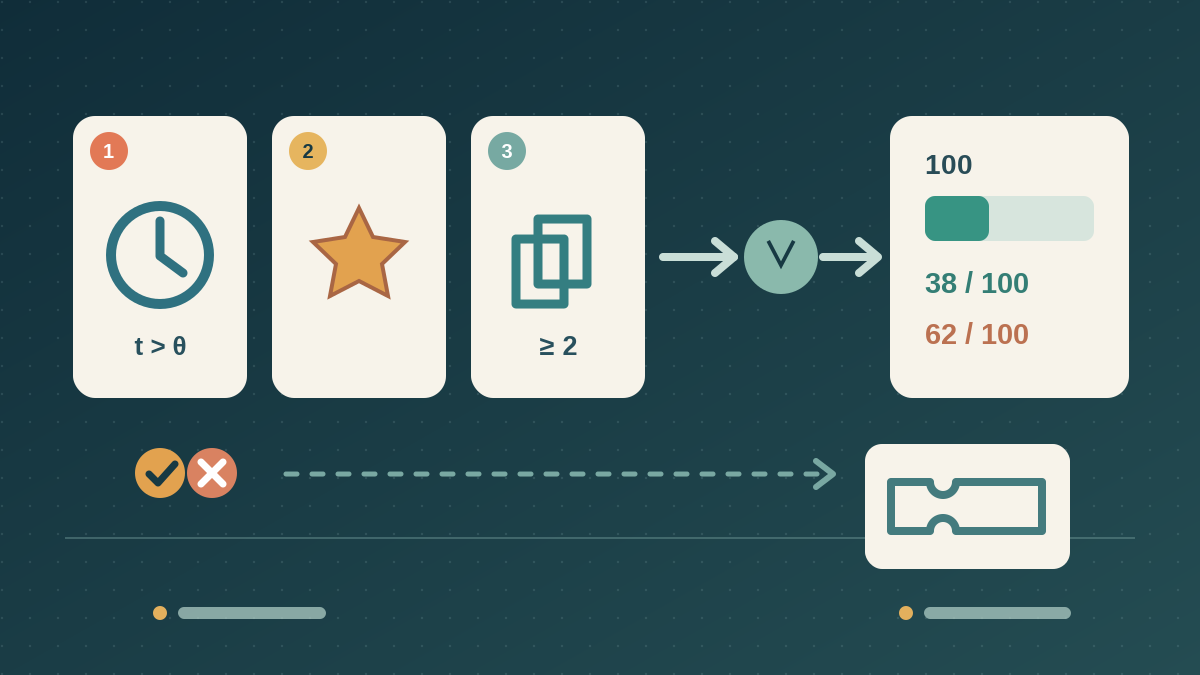
In GA4, an engaged session meets at least one condition: it lasts longer than the configured engagement threshold (10 seconds by default), contains a key event, or includes at least two page or screen views. Engagement rate is engaged sessions divided by sessions; bounce rate is the remainder. For 100 sessions with 38 engaged sessions, bounce rate is 62%. This is a session metric, not the percentage of people who exited from one particular page and not a measure of how much text they read.[1][2]
The engagement timer can be changed in a web data stream, so record the property's setting instead of treating 10 seconds as universal. Marking an event as a key event can also change which sessions count as engaged. If the definition changed between two periods, the bounce-rate trend may move even when the attendee experience did not. Do not compare GA4 bounce rate directly with an older Universal Analytics figure or a generic marketing glossary's shorthand definition.[1][2][6]
Read the current event page, not a sitewide average
Use the GA4 Landing page detail report for the published URL of the current event edition. Its Landing page dimension is the first pageview in a session, and its Sessions metric counts sessions that began on the site. Write the exact path, date range, property, and whether translated or parameterized URLs are combined. A sitewide percentage can hide a problem on the ticket page or make a useful FAQ page look poor. Keep archive pages and current sales pages separate.[3]
If bounce rate is not shown, an Editor or Administrator can add Bounce rate and Engagement rate to a detail report's Metrics. A viewer should ask for the saved report or an export, rather than altering a shared property just to read it. Compare the same landing path by mobile/desktop and by meaningful traffic source when enough sessions exist. A campaign with a vague promise and a direct link from a loyal audience can produce different behavior even on the same page; neither difference alone diagnoses the page.[1][4]
Check settings before comparing periods
Before interpreting a rise, confirm that the event page still sends GA4 pageviews, the date window and web stream are correct, and the engagement timer and key-event list have not changed. Check whether a site redesign removed a tag or whether a new ticket button changed the URL. A sudden metric jump that coincides with a measurement change is a measurement question first. Document the old and new settings; do not edit key-event settings merely to make the bounce rate look better.[1][2]
For an external ticket checkout, GA4 can record an outbound-link click when enhanced measurement is enabled and the destination is another domain. A domain configured for cross-domain measurement is excluded from that automatic outbound event, and custom buttons or scripts may need separate verification. Test the actual published link and event before using ticket-link click counts. The organizer's GA4 property cannot infer a completed provider order from a click; use the ticket provider's own order record for sales.[5][6]
Distinguish a fast success from a broken path
A visitor can read the date and location in five seconds and leave satisfied. That one-page session may be unengaged under GA4's definition despite accomplishing the information task. Another visitor may click the external ticket link quickly; if that click was not a key event and there were no other engagement conditions, the session can also count as a bounce. A third visitor can view two pages or trigger a key event and count as engaged without buying a ticket. The metric sorts sessions by its defined signals, not by attendee intent or commercial outcome.[1][5]
Read bounce rate beside the task the page promises. For a simple directions page, verify that the address, transit note and map link work. For a sales page, verify date, price, restrictions, mobile CTA and destination. If the rate is high only for one source or device, inspect that source's promise and test that device's path. If it is high everywhere, first rule out missing tags and broken links. Do not set a universal good bounce-rate threshold; a sold-out archive, an FAQ, and an on-sale page ask visitors to do different things.[3][6]
| Observed session | GA4 classification may be | What to verify |
|---|---|---|
| One page, answer found in five seconds | May bounce without a key event | Was the answer accurate and easy to find? |
| Fast ticket-link click to external checkout | May bounce unless the click is a key event or another condition is met | Did the link work and was the click event recorded? |
| Two pageviews, no order | Engaged | Did the visitor reach a useful next step? |
Work through a bounded numerical example
Suppose a current event page has 200 GA4 landing sessions, of which 70 are engaged. GA4 therefore reports 35% engagement and 65% bounce. In the same interval you see 24 recorded outbound ticket-link events, while the ticket provider reports 11 orders. Do not divide 11 by 200 and call it a GA4 conversion rate: the datasets may not identify the same people, the orders may originate elsewhere, and the 24 clicks may include repeat actions. The only warranted conclusions are that GA4 classified 130 sessions as unengaged and that the separate systems recorded those events and orders.[1]
Now imagine the organizer marks the ticket-link event as a key event. Some quick ticket-link sessions may become engaged by definition, lowering bounce rate without a page edit or additional sale. That can be a legitimate configuration choice when the click is a meaningful business action, but annotate the change and begin a new comparable baseline. To decide whether the page needs work, test a visitor's route to the correct ticket page and inspect qualified click and provider-order records separately. A numerical example is not a target rate.[5][6]
Turn the signal into one checkable decision
Write one question in the worksheet: is the high bounce rate concentrated on a particular landing path, device, source, or period? Record sessions and the exact rate, then choose one competing explanation: quick information success, external handoff, content mismatch, broken route, or measurement gap. Test the live page as a visitor before changing copy. For a mismatch, adjust the promise or the first useful facts; for a broken CTA, repair it immediately; for a measurement gap, fix and verify the tag before evaluating the page.[3][1]
After a change, compare a similar event phase and audience, using the same GA4 definitions and the same page path. Watch the specific intended action, such as valid ticket-link handoffs, rather than celebrating a lower bounce number alone. Campaigns, sale opening, sellout and page inventory alter visitor behavior; note them alongside the result. Keep orders in a separate column and make no causal sales claim from a before/after bounce-rate shift.[1][6]
Sources and further reading
- Engagement rate and bounce rateGoogle Analytics Help · Accessed
- About Analytics sessionsGoogle Analytics Help · Accessed
- Landing page reportGoogle Analytics Help · Accessed
- Customize detail reportsGoogle Analytics Help · Accessed
- Measure outbound clicks for a websiteGoogle Analytics Help · Accessed
- Report on key eventsGoogle Analytics Help · Accessed