Measure newsletter signups separately from event ticket purchases
A visitor can join your event newsletter, buy a ticket, do both, or do neither. A single “conversion” total hides those different outcomes. This guide defines a successful signup, keeps ticket sales in their own lane, and shows how to test and report each action without claiming that every subscriber bought a ticket.
Boletolibre editorial team
Published
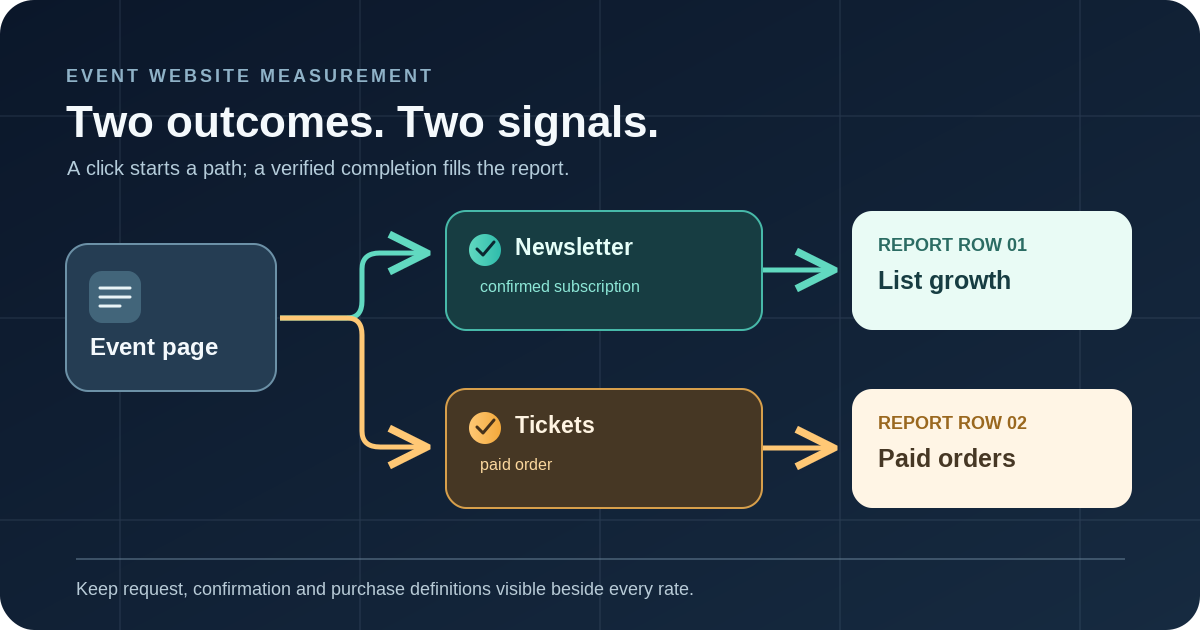
Name the two outcomes before tagging
Write the reporting question first: “How many eligible newsletter subscriptions completed?” and “How many ticket orders were confirmed?” Neither a click on Subscribe nor a click on Buy tickets answers it. Those clicks are useful diagnostic events, but they are not the outcome. Treat newsletter growth as an audience outcome and a paid ticket order as a commerce outcome. GA4 calls important actions key events; a key event still needs a precise underlying event.[1][10]
Choose whether the newsletter number means a submitted request or a confirmed subscriber. With single opt-in those may happen together. With double opt-in, the form submission starts a pending state and the contact becomes subscribed only after confirming the message. If the confirmation happens in the email platform and cannot be tied back to a consented browser session, report that platform count beside GA4 rather than silently treating the on-site form as final subscription.[1][10]
| Outcome | Completion signal | Final outcome? |
|---|---|---|
| Newsletter request | Provider accepted the on-site form | No, if double opt-in is pending |
| Confirmed subscriber | Email platform marks contact subscribed | Yes, for list growth |
| Ticket purchase | Checkout records a paid order | Yes, for paid orders |
Locate the actual completion signal
Map the real visitor path in a staging or test environment: form displayed, validation, provider acceptance, optional confirmation email, then subscribed state. Record who owns each step. A success message produced before provider acceptance is not a reliable completion signal. A generic thank-you URL may also be opened directly or refreshed. Prefer the application or form provider’s accepted-success callback for an on-site event; if using a dedicated confirmation page, verify that it only appears after a completed action and document its repeat-view risk.[2][10][7]
Map ticket purchase separately. A ticket button that sends visitors to a hosted checkout is a handoff, not evidence of a sale. Use a confirmed order event from the checkout or your commerce integration, with a transaction ID and appropriate purchase fields when GA4 ecommerce is implemented. If the provider does not return a trustworthy purchase signal to your property, use its paid-order export as the sales source of record and label the GA4 handoff as a click.[2][10][7]
Before choosing a GA4 trigger, make a small evidence log for one real test: time of submission, visible success state, provider record status, and any analytics event. This reveals whether the page announces success while an API call is still pending, whether a hosted form returns to the event domain, and whether two different tags fire for the same accepted request. The source-of-record check also exposes “already subscribed” responses that look successful on screen but add no new subscriber.[2][10][7]
Give each outcome its own event
Choose distinct, stable names. For example, newsletter_signup_request can mean provider-accepted form submission, while newsletter_subscription_confirmed means an actually active subscription if that later state can be measured appropriately. Do not use one generic form_submit key event for all contact, volunteer and newsletter forms. GA4 enhanced measurement can collect form_start and form_submit with form identifiers; inspect the real behavior before relying on it, especially when a custom form handles the submit. A dedicated event can be sent by the implementation or created from conditions on an existing event.[3][1][7][8][9]
Use purchase for confirmed commerce rather than renaming a ticket-button click to purchase. Google’s purchase reference includes transaction_id to help avoid duplicate orders. Keep revenue and currency on the purchase side; do not assign a speculative ticket value to a newsletter signup. If an account is not being created, avoid GA4’s recommended sign_up event, which describes account creation. Keep event names and definitions in the worksheet so a future site redesign does not change their meaning. Use a unique, non-personal transaction ID for each order; never put an attendee name or email address in that ID.[3][1][7][8][9]
If the form is embedded, record its form ID or a stable non-personal label so its actions can be separated from other forms. Keep the event contract independent of the page location: the same newsletter may appear in the header, footer and a dedicated page. Do not create one key event for each placement unless placement is the question. Conversely, a shared thank-you page for several forms cannot identify a newsletter completion without an additional reliable condition.[3][1][7][8][9]
| Event or measure | Trigger | Interpretation |
|---|---|---|
| newsletter_signup_request | Accepted form response | Optional diagnostic/key event; not necessarily an active subscriber |
| newsletter_subscription_confirmed | Verified subscribed state | Count in email platform if no safe GA4 signal exists |
| purchase | Confirmed ticket order | Commerce event with transaction ID; never a button click |
Test success, failure and repeat paths
Run an intentional test matrix before publishing. Complete one valid newsletter signup, one invalid form, one already-subscribed address, one double-opt-in request without confirmation, and one completed confirmation if available. Repeat a success-page load. For tickets, test a checkout exit or failed payment and one confirmed test order. The expected outcome is zero completion events on failure paths and one on each actual completion; an outbound ticket click must not become a purchase.[5][11][7]
Use Tag Assistant and GA4 DebugView on a test device to inspect the exact event name and safe parameters. DebugView can show events in near real time, but missing events may reflect the site’s privacy controls or denied analytics consent. Test within the allowed consent state and document the gap rather than overriding a visitor’s choice. Never send email addresses, names, ticket IDs tied to a person, or form values to GA4. Use non-identifying form or campaign labels only.[5][11][7]
Test the opposite journey too: buy a ticket without subscribing, then subscribe without buying. This catches an easy implementation mistake in which a shared thank-you component or sitewide click listener sends both events. If the ticket platform sends a browser event and a server event, decide which is authoritative and verify that one paid order is counted once. A test order may need a test-mode report or a clearly marked exclusion from production totals.[5][11][7]
Report with a declared denominator
Choose one date range, time zone and population for the comparison. In GA4’s Traffic acquisition report, select the individual key event when reading key-event counts and session key-event rate. “All events” mixes newsletter and purchase actions. A session key-event rate asks what share of sessions had that event, not what share of ticket buyers subscribed. If the same session contains both actions, it legitimately contributes to both outcome rows.[6][4]
State the denominator beside every percentage. Newsletter completion per eligible newsletter-form session answers a form question; purchase per eligible ticket journey answers a commerce question. If you instead use all event-site sessions for both, label the broader denominator and do not call either number “form conversion.” GA4’s once-per-event and once-per-session key-event counting differ; select and document a method. A once-per-session setting reduces repeat key-event counts within one session but is not a unique-person or confirmed-subscriber count.[6][4]
A simple reporting sheet should show the raw numerator, the eligible denominator, the calculated rate, the source system, and the definition date. Break the two outcome rows down by channel only if the underlying sessions and events are collected consistently. Traffic acquisition is session-scoped; it can show where sessions came from, but a channel row in this comparison does not prove that a particular newsletter message caused a later purchase. Keep campaign attribution as a separate question with its own method.[6][4]
Do not divide provider-wide requests or paid orders by GA4 sessions merely because the dates match. The numerator must belong to the same eligible, measurably covered cohort as the denominator. If consent or a hosted flow prevents that match, show the provider and GA4 counts side by side and leave the cross-system rate blank.[6][4]
Read a worked example without false attribution
For this illustrative week, assume each numerator belongs to its stated eligible cohort. Suppose the same week has 10,000 event-site sessions, 700 sessions that reached the newsletter form, 180 provider-accepted signup requests, 150 confirmed new subscribers in the email platform, 1,400 ticket-journey sessions and 210 confirmed orders in the checkout export. The on-site request rate is 180 ÷ 700 = 25.7%; the email-platform confirmation rate is 150 ÷ 180 = 83.3%; the order rate is 210 ÷ 1,400 = 15.0%. These are three different denominators and should not be placed in one unlabeled “conversion rate” cell.[6][7][10]
If GA4 receives only 160 newsletter_signup_request events and 190 purchase events for the same period, the gaps of 20 and 20 are investigation prompts, not automatic evidence of lost subscribers or orders. Consent, hosted flows, tag failures, time-zone cutoffs and event definitions can all affect a comparison. Do not subtract the 150 subscribers from 210 orders or claim that 60 purchasers came from the newsletter; some visitors may be in both groups and this report does not establish a causal path.[6][7][10]
The three example rates assume that the 180 requests belong to those 700 eligible form sessions, the 150 confirmations come from those same 180 requests, and the 210 orders belong to those 1,400 eligible ticket sessions. Verify those links before publishing a rate. The GA4 counts below are a separate measurement set, not proof that the source-system rates are valid.[6][7][10]
| Metric | Calculation | Result |
|---|---|---|
| On-site request rate | 180 / 700 | 25.7% |
| Confirmation rate | 150 / 180 | 83.3% |
| Ticket order rate | 210 / 1,400 | 15.0% |
Reconcile with the systems of record
Keep an auditable source-of-record pair: newly confirmed subscribers in the email service during the reporting period and paid orders in the ticket or payment system. Compare those with the site’s GA4 event counts by the same dates and a documented definition. Investigate material variance by walking through a sample journey, checking consent, cross-domain or hosted steps, duplicate firing, direct thank-you visits and canceled/refunded orders. The goal is to explain what each system counts, not to force them into identical totals.[10][11][5]
If double opt-in occurs after the visit, the email service may know a subscriber is confirmed while GA4 cannot assign that confirmation to the original session. A server-side analytics event also needs a legitimate identifier and consent design; do not invent a visitor identity from an email address just to connect the dots. For most event teams, a side-by-side report with clearly labeled platform counts is more honest and more useful.[10][11][5]
Set a practical variance threshold before reviewing the report, for example a number of records or percentage that merits investigation rather than normal timing differences. When a discrepancy appears, compare a short sample of order timestamps and provider statuses before changing tags. Retagging to make a dashboard match an export can erase the original meaning of the event. Record the explanation and the next verification date, especially if the gap is due to delayed opt-in or consented measurement coverage.[10][11][5]
Use the two-outcome worksheet
Download the worksheet and fill in the completion contract, implementation owner, test cases, denominator and reconciliation notes. A report is ready when another teammate can tell which number means a request, which means an active subscriber, which means a paid order, and where each was verified.[12][1]
Download the two-outcome measurement worksheet (Markdown, English)
Sources and further reading
- About key eventsGoogle Analytics Help · Accessed
- Enhanced measurement eventsGoogle Analytics Help · Accessed
- Create or modify key eventsGoogle Analytics Help · Accessed
- Change the counting method of key eventsGoogle Analytics Help · Accessed
- Monitor events in DebugViewGoogle Analytics Help · Accessed
- Traffic acquisition reportGoogle Analytics Help · Accessed
- Recommended events: purchaseGoogle Analytics for Developers · Accessed
- Minimize duplicate key events with transaction IDsGoogle Analytics Help · Accessed
- Recommended events by business verticalGoogle Analytics for Developers · Accessed
- Choose Opt-in SettingsMailchimp Help · Accessed
- Safeguarding your dataGoogle Analytics Help · Accessed
- Newsletter Signup Forms: Best PracticesMailchimp · Accessed