Publish an accessible urgent update on an event website
A schedule shift, inaccessible entrance or checkout interruption can make the event website wrong while visitors are on their way. The editor needs a short, approved update that says what is known and what people should do next. This guide turns an emergency communication plan into a website publishing task: establish the source, write a bounded notice, put it where affected visitors will encounter it, and verify the live result. Its editable card is for a rehearsal or real update; it is not a substitute for the organizer's operational decision.
Boletolibre editorial team
Published
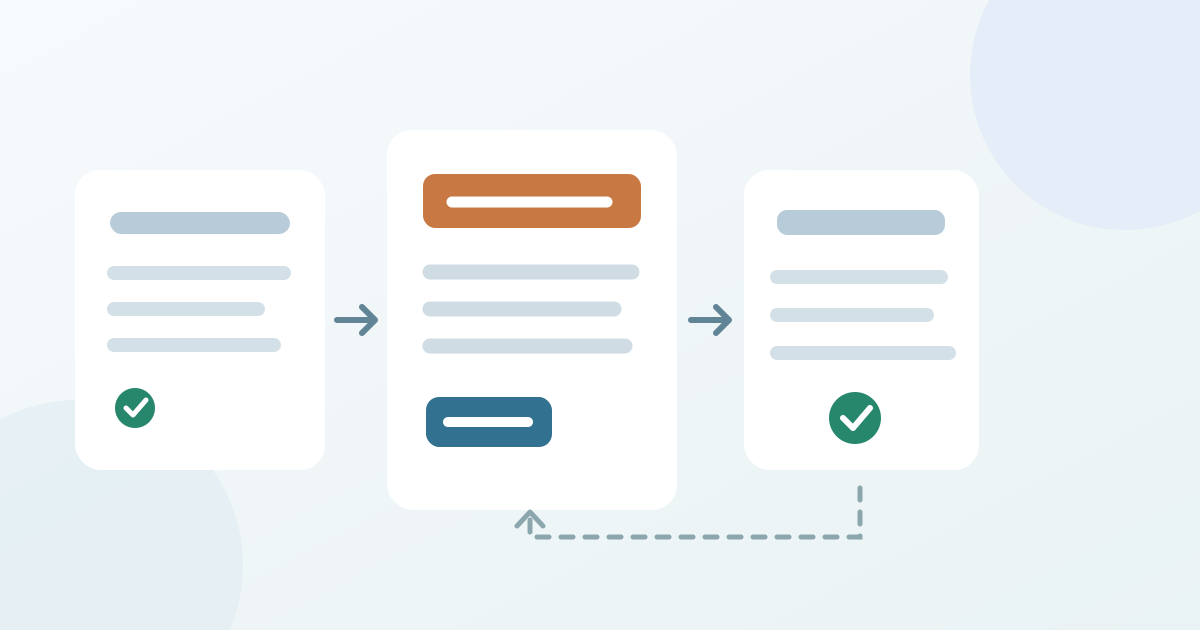
Write the visitor's next decision first
Lead with an explicit status and the affected scope: for example, ‘Saturday afternoon entry has moved to the east gate’ only when that gate and time are approved. Then state the immediate action and a route for more detail. Separate confirmed facts from an investigation: ‘We are checking whether online checkout is available’ is different from ‘Ticket sales have stopped.’ Give the time of the last update with its time zone, and state when another update is expected only if someone owns that promise.
The useful minimum is what changed, who is affected, what to do now, and where to check again. Avoid a banner that says only ‘Important update,’ a red badge without words, or a long explanation before the action. Never infer that a ticket is valid, a venue is safe, or a service is available from a page edit alone. A plain-language notice helps visitors decide whether to travel, wait, use an alternative entrance, or contact an official support channel; the approved operations record must supply those answers.[2][4]
Put the notice on the paths people actually use
Identify the pages visitors may reach directly from search, email, QR codes and old bookmarks. A home-page banner alone may miss someone opening a ticket or venue page. Put a concise notice on the affected destination and link to one stable update page when the explanation is longer. Check that its link text names the destination, such as ‘Current entrance update,’ rather than ‘Learn more.’ If the checkout is external, do not assume you can edit that provider's page; keep your own event-information route truthful and usable.[5]
Avoid scattering slightly different instructions through the site. The editor card lists each public URL, its owner and the action needed, so the team can compare copies after publication. Keep the top-level message consistent across language versions while allowing idiomatic wording. If a route cannot be updated promptly, the owner should decide whether to remove or redirect the conflicting statement. A notice is effective only when a visitor can reach it before acting on stale information.
Keep the urgent information readable and perceivable
Publish the essential facts as real page text with a meaningful heading; a poster image, color strip or embedded social post should not be the only carrier. Accessibility Standards Canada's emergency checklist favors readable formats, structured headings and descriptive links. W3C advises clear, concise wording and semantic headings. If an image is needed, provide an appropriate text alternative; a purely decorative icon need not repeat the whole notice. Do not rely on color alone to distinguish ‘open,’ ‘closed’ or ‘under review.’[1][2][4]
Check the actual colors of ordinary notice text against its background: WCAG 2.2 AA sets at least 4.5:1 for normal text and 3:1 for large text. The older Canadian checklist says 4:1, so use the current W3C criterion for a precise web contrast check. Enlarge text and inspect a narrow viewport: the full status, time and action should reflow without clipping or covering a control. A video may add context, but put the immediate instruction in text so visitors need not play media to learn it.[1][3][6]
Publish, inspect and record the live result
Preview is only a draft view. After publishing, open the public URL without an editor session and inspect it on a phone-sized screen. Follow every action link to its real destination, including any alternate contact route. Use keyboard navigation to reach the notice's links, and read the page with a screen reader to check that the heading, status and action are available in sensible order. If a cache or CDN serves old content, record the observed public version and escalate to the site owner instead of assuming the CMS's ‘Published’ state is enough.[2][5][6][7]
Record the publication time and time zone, approver, editor, changed URLs and a short observation of the public page. Compare the notice with the event fact record and any direct attendee message. A second reader can catch a swapped date or venue that an editor familiar with the draft misses. When the update is translated, verify each live locale; a correct English preview does not prove the other public pages are current. The card provides separate spaces for approval, publication and public verification.
Update or retire the notice when the state changes
Set a review trigger when the notice goes live: a decision deadline, a named owner, or a promised next update. If the event is still under review, update the timestamp and facts rather than leaving an old ‘checking’ message indefinitely. When the situation resolves, replace urgent language with the confirmed current instruction and remove stale banners from all listed pages. Preserve a brief dated change record for the team; visitors should see the present status first.
Run one rehearsal before a high-stakes event. Give the backup editor a hypothetical change, approved fact record and test pages. Time how long it takes to locate the correct edition, get approval, publish, verify the public route and correct one deliberate error. Fix missing access, ambiguous ownership or inaccessible notice styling before the real incident. This exercise tests the website publishing handoff; it does not authorize the editor to make safety or ticketing decisions.
Sources and further reading
- Checklist: making your website accessible for emergenciesAccessibility Standards Canada · Accessed
- Writing for Web AccessibilityW3C WAI · Accessed
- Understanding SC 1.4.3: Contrast (Minimum)W3C WAI · Accessed
- Understanding SC 1.4.1: Use of ColorW3C WAI · Accessed
- Understanding SC 2.4.4: Link Purpose (In Context)W3C WAI · Accessed
- Understanding SC 1.4.10: ReflowW3C WAI · Accessed
- Understanding SC 2.1.1: KeyboardW3C WAI · Accessed