Publish event sponsors on a website: logo layout, links and release checks
A sponsor page tells visitors which organizations support this edition of an event. It should reflect a confirmed public list and the placement approved by the sponsor lead, rather than a proposal still being negotiated. Build the page from one versioned display brief, decide what each visitor needs to see, and check the published result before anyone shares its URL.
Boletolibre editorial team
Published
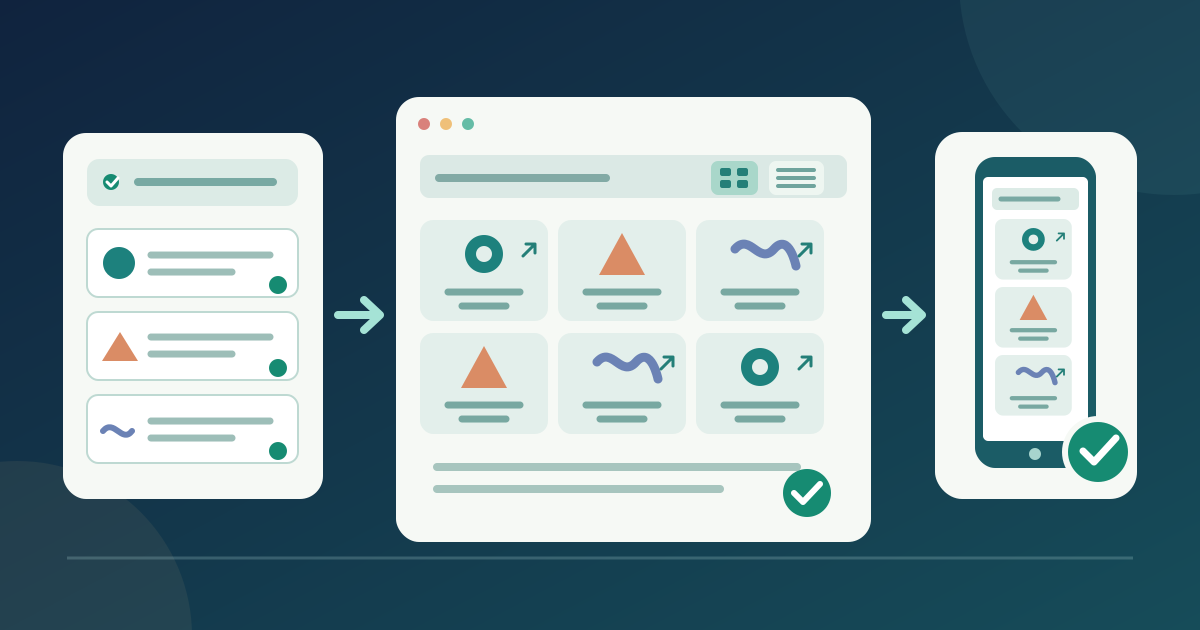
Start with one confirmed display brief
Download the sponsor page publish matrix (English Markdown)
Ask the sponsor lead for the confirmed names, event edition, display category, public label, logo file, destination URL and any agreed position or wording. Mark each field with its approver and date. If a contribution is still pending, keep that organization out of the public list until the lead confirms its status. Do not infer placement from the amount promised or from last year’s page.
Put the display brief in the same workflow as the page draft, but keep private package terms in a controlled record. Decide who can resolve a disputed name, category or logo version. This makes it possible to publish the correct list without asking a web editor to interpret an agreement. Use the release worksheet below to capture the exact approved public fields.
Decide where visitors will find sponsors
Choose a dedicated sponsor page when the list needs categories, short descriptions or many links. A compact section on the main event page can point to it. If only a few names need recognition, a short section may be enough; the choice depends on the approved placement and what visitors can actually scan. Label navigation with a plain name such as Sponsors or Partners.
Keep the recognition page separate from a call for new sponsors. One names confirmed supporters; the other explains how a prospective organization can contact the team. If both are useful, give each its own heading and destination. Check that the event edition and date are visible so a returning visitor does not mistake a past sponsor list for the current one.
Give each sponsor a useful, consistent entry
For each entry, use the approved organization name as readable text. Add one short role or contribution description only if the sponsor lead has cleared it for publication. A logo alone can be hard to identify at a glance, especially when several marks use similar colors. If a card links outward, say where it goes instead of using an unlabeled icon or vague button.
Do not fill missing details with a guessed description, a social account found in search, or a generic corporate home page. Confirm the exact destination URL with the owner and record whether it should go to a campaign, organization, or event-specific page. If a sponsor has no approved link, the name can still be displayed as text.
Prepare logos without losing names or links
Start from the approved logo asset and record its version. Use a neutral container with enough space for wide and tall marks; inspect small-screen crops instead of stretching the artwork. Do not redraw a mark or remove part of its name to make an uneven grid look neat. If a new file arrives, ask the sponsor lead which version should replace the current one.
For an informative standalone logo, provide text that identifies the organization. When a logo is the only content of a link, W3C guidance says its text alternative should describe the link’s function or destination. A visible name next to the image can make the card easier to scan. A single image containing many logos can make individual names and destinations difficult to provide; choose it only when that limitation fits the brief.[1]
Choose a layout that fits the approved list
A static list or card grid lets visitors see all confirmed names without waiting for a slide. Cards can include a short approved description and distinct link; a simple logo-and-name row suits a shorter list. If categories or ordered positions are promised, mirror the approved brief and check the published sequence. Keep visual size and spacing consistent without silently changing the meaning of a named category.
A rotating carousel may be an option when space is constrained, but it needs navigation and a way to pause movement if it advances automatically. W3C’s carousel tutorial explains those controls. Before choosing one, ask whether every sponsor will remain findable on phone and keyboard. Avoid building a slideshow merely because the editor provides a widget.[2]
Test the public page, not just the editor preview
Open the published URL without an editor login. Compare every displayed name, category, description, logo and link with the approved brief. Follow each outbound link and note the final destination; a saved URL can redirect somewhere unexpected. Check that a linked logo or button has an understandable name in context. Record reviewer, device, date and any correction owner.[3]
On a phone, inspect the full list, logo crops and spacing. With a keyboard, follow the page order, reach every link and observe visible focus. If a carousel is used, test its controls and whether content can be paused. Review each published language version rather than assuming the default page’s cards and links were copied correctly. Reopen the live page after fixes.
Update changed details and close the edition
When a sponsor changes its public name, URL, logo or approved category, update the display brief first and assign a page editor. Review every location where that entry appears, including homepage sections and translated pages. Verify the live result after publication; a changed source file or draft is not proof that the public page changed. Record the new version and notify the sponsor lead of any unresolved mismatch.
At the end of the event, decide whether the page remains as an archive of that edition or is replaced by a new edition’s list. If it remains, label the past date and keep its links under review; if it is retired, update navigation and references. Never carry a sponsor into the next edition automatically. The worksheet closes with a page-location and link check so recognition stays tied to the correct event.
Sources and further reading
- Images TutorialW3C WAI · Accessed
- Carousels TutorialW3C WAI · Accessed
- Understanding Success Criterion 2.4.4: Link Purpose (In Context)W3C WAI · Accessed