Why GA4 and ticket orders disagree by day: reconcile the time zones
A ticket order at 00:30 in the sales platform can appear on the previous day in GA4. That difference may be a calendar boundary, not a lost purchase. This guide shows how to prove or rule out a time-zone shift before changing tracking or reporting settings.
Boletolibre editorial team
Published
Compare the same event, not just two daily totals
Start with a precise question: are you comparing GA4 purchase events with completed orders, ticket quantities, revenue, or merely clicks on an external checkout link? Those are different units. A link click can happen without an order, and one order can contain several tickets. A time-zone correction cannot make unlike metrics equal. Use this method for one-to-one purchase and order records where that link exists; otherwise label the reports as separate stages of a journey.[4]
Choose one event, two adjacent calendar dates, and a snapshot time for each report. Define the completed-order status filter in the ticket report; check whether GA4 purchase events represent that same scope and record any difference. Record whether refunds, test orders, canceled orders, box-office sales, and multi-ticket orders are included. Preserve the original daily numbers before doing any conversion. A useful audit explains a specific movement between dates; it does not silently rewrite a sales ledger to force agreement.
If the ticket provider owns checkout and your GA4 property records only an outbound ticket-link click, stop the purchase-level comparison there. Report clicks as interest and confirmed orders from the provider as sales. The earlier website-to-ticketing handoff may deserve its own tracking check, but it is not evidence that midnight caused a missing purchase.
Write down both reporting clocks
In GA4, the property reporting time zone sets the day boundary for reports regardless of where a visitor is. Find it in the property details and record the named zone, such as America/New_York, rather than a fixed “UTC−4” label. Relative ranges such as “yesterday” in the Data API are also interpreted in that property zone. A visitor’s local clock and an analyst’s laptop clock do not override it.[1][2]
Ask the ticket platform which zone its order-created timestamp and dashboard daily totals use. A venue zone, account zone, UTC export, and payment-settlement date may be different. Keep the raw timestamp with its offset or UTC marker if the export provides one. If an export contains only a date, do not invent an hour; ask for a timestamp or limit the conclusion to a possible boundary explanation.
Record the zone in effect on the actual order date, including daylight-saving rules. Named zones handle seasonal offset changes; a fixed offset copied from today may be wrong for an older launch. Do not change the GA4 property zone merely to make two daily charts look alike: Google says a change applies going forward and can create a temporary flat spot or spike. Convert a copy of the evidence first.[1]
Trace a small midnight sample
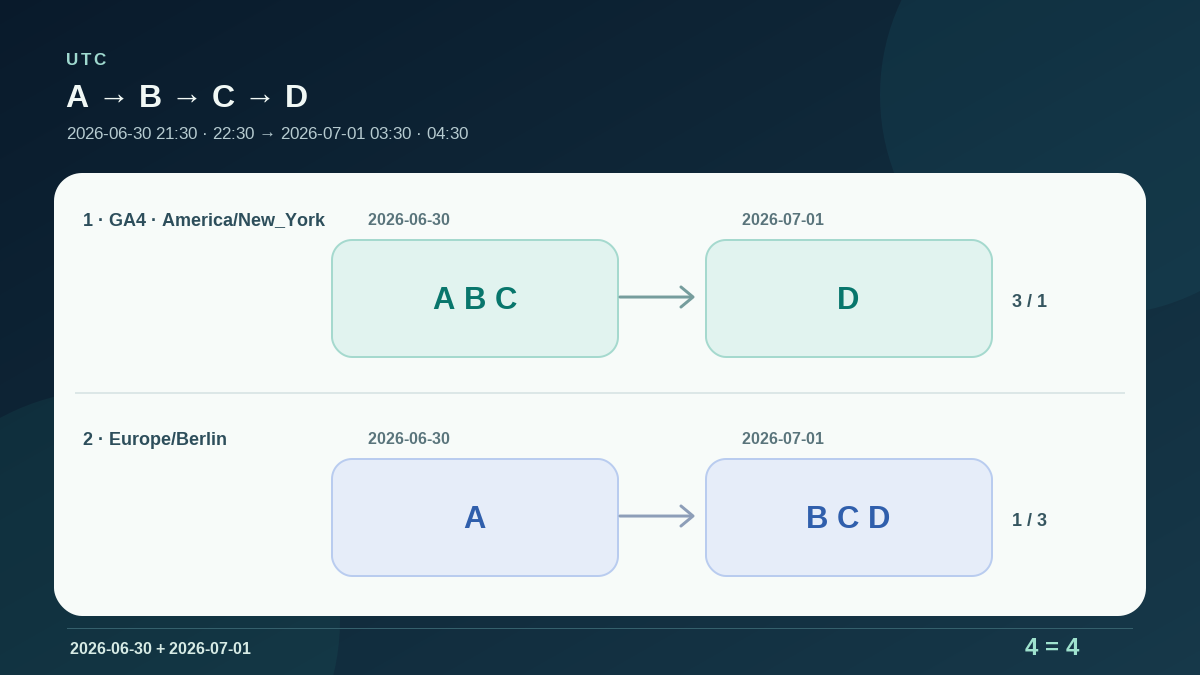
Use a few matched, non-personal transaction identifiers near midnight. The example below assumes four purchase events and four confirmed orders refer to the same four transactions; for this calculation, each event and order-created timestamp shares the UTC instant shown in its row. On 1 July 2026, New York is UTC−4 and Berlin is UTC+2. The transaction ID joins the records; UTC supplies a common clock for comparing their dates.[1][4]
The two middle orders fall on 30 June in the GA4 property and 1 July in the order system. GA4 therefore shows three purchases on 30 June and one on 1 July, while the sales report shows one and three. Across the two days both systems still show four. The example demonstrates a date shift, not a rule that GA4 or a ticket provider always uses either of these zones.
Check a window that includes the dates on both sides of the boundary. If the same matched IDs reappear on the adjacent day and totals for that ID set agree across the window, you have a supported time-zone explanation for that portion of the daily gap. A remaining difference needs another cause. Do not add daily sessions together as a substitute for transaction-level evidence; GA4 sessions can cross midnight.[5]
| UTC instant | GA4: America/New_York | Orders: Europe/Berlin | Example ID |
|---|---|---|---|
| 30 Jun 21:30 | 30 Jun 17:30 | 30 Jun 23:30 | A |
| 30 Jun 22:30 | 30 Jun 18:30 | 1 Jul 00:30 | B |
| 1 Jul 03:30 | 30 Jun 23:30 | 1 Jul 05:30 | C |
| 1 Jul 04:30 | 1 Jul 00:30 | 1 Jul 06:30 | D |
Reconcile after reports settle
Give GA4 time to finish processing before declaring a permanent mismatch. Google says report data can change during a 24–48-hour processing period; an intraday report and a finalized daily report are not equivalent snapshots. Record when each export was taken, the report surface, the selected dates and filters, and whether the ticket system has also finalized the relevant orders.[3]
If purchase events carry transaction IDs, compare a small authorized set of those IDs with the order system, using masked or synthetic IDs in the worksheet. Google recommends a unique transaction ID for each purchase and warns that empty or reused IDs distort deduplication. A matching ID with a different local date supports a clock explanation; an order with no corresponding GA4 purchase may indicate an instrumentation, consent, browser, or handoff issue instead.[4]
Keep event time, order-created time, payment-completed time, and refund time in separate columns. A later payment confirmation or a refunded order may change the sales platform’s status or financial report without moving the original web event. If you use BigQuery, its `event_date` follows the GA4 reporting zone while `event_timestamp` is UTC microseconds; convert timestamps for a like-for-like date comparison. Daily BigQuery export tables can receive delayed events for up to 72 hours after their date, so compare mature exports before calling a residual gap permanent.[5]
Decide what the remaining gap means
Classify the result per record: moved to the adjacent day, still missing, duplicate, different status, or a different metric entirely. Publish the agreed report basis with the chart: for example, “confirmed online orders by venue date” and “GA4 purchases by property date.” A daily trend without its zone and order definition is easy to misread, especially across a campaign launch at night.
If the two-day transaction set agrees, annotate the daily report and keep the property setting stable. If it does not, trace the remaining IDs through the checkout and GA4 implementation, then test the affected path with a controlled order. Do not attribute every discrepancy to time zones or use a broad percentage tolerance to hide missing sales. The next action should follow the evidence for the unmatched records.[4]
Reuse the worksheet for every provider or campaign where the reporting clock differs. It captures both named zones, raw and normalized timestamps, paired IDs, status filters, snapshot times, the two-day totals, and an owner for unresolved records. Store only the minimum information needed for the audit; the public report needs definitions and aggregate counts, not buyer details.
Download the time-zone reconciliation worksheet (Markdown, English)
Sources and further reading
- Set up Analytics for a website and/or appGoogle Analytics Help · Accessed
- DateRangeGoogle Analytics Data API · Accessed
- Data freshnessGoogle Analytics Help · Accessed
- Minimize duplicate key events with transaction IDsGoogle Analytics Help · Accessed
- Bridge the gap between the Google Analytics UI and BigQuery exportGoogle for Developers · Accessed