How to schedule and verify an event ticket reminder email
A reminder draft is not a scheduled message. Before turning on an event-ticket reminder, establish which event time triggers it, which ticket records qualify and whether the system sends to buyers or individual holders.
Boletolibre editorial team
Published
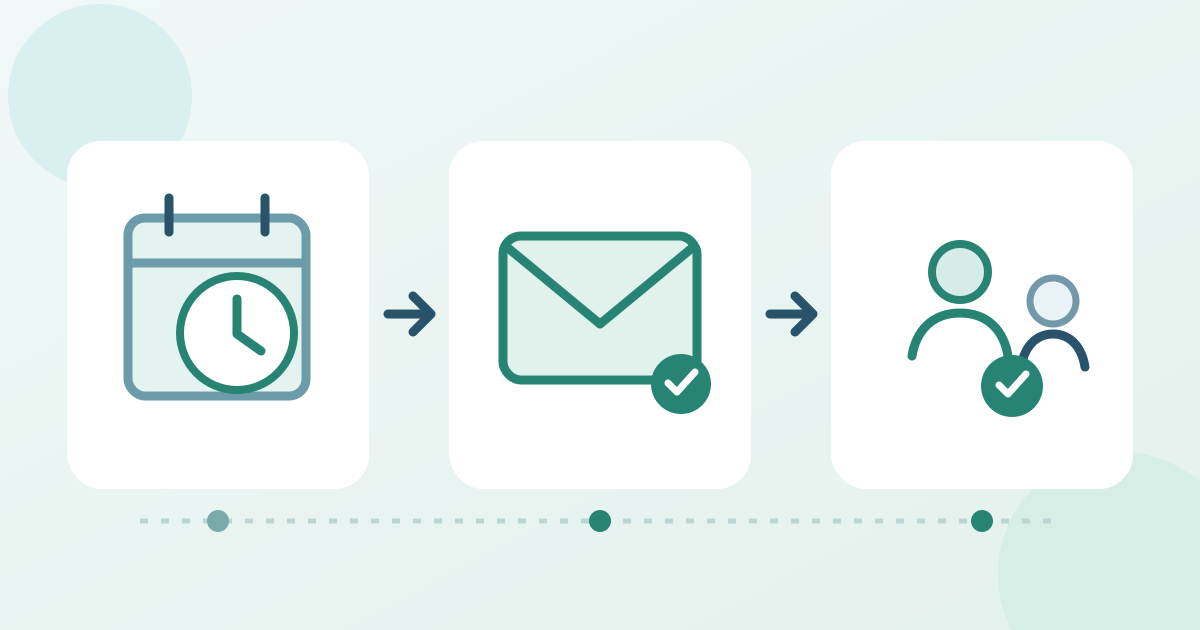
1. Record the event and audience
Download the reminder schedule and recipient preflight card (Markdown, English)
Write down the event, date or occurrence, local start time and time zone. Identify the intended recipients and exclusions from the actual ticket records, including multi-ticket buyers and holders without a separate email address. Do not assume a test sent to yourself proves that every attendee is reachable. Ticket Tailor says its scheduled Email broadcasts reach ticket buyers, not automatically each attendee; check your own sender's audience before choosing it.[2]
2. Set the supported trigger
In SimpleTix, automatic reminders have a site-wide switch and timing setting, an event-level enablement check and a shared Event Reminder template. Verify all three for the event you mean to update. Ticket Tailor instead documents scheduling a broadcast at an interval before the event starts. These are different provider mechanisms; use the actual controls and saved schedule shown in your account, not a presumed default or copied menu path.[1][2]
3. Test the message and recipient cases
Preview the subject, event name, date, time zone, venue or joining route, ticket instructions and support link on a phone. Use controlled records to compare one buyer attending, a buyer holding several tickets, and a different holder where your platform stores that address. For a recurring event, check one intended occurrence against another. A test email checks rendering; separately inspect the eligible audience and scheduled trigger. Fix a wrong link or audience before enabling the live send.[1][2]
4. Verify the saved state and later changes
Reopen the event and record the enabled state, trigger, content version, recipient scope and owner. After the scheduled time, inspect any send status and delivery reports the provider exposes; a saved draft alone is not a sent reminder. If the event time, venue or ticket audience changes, review the existing schedule and template again. Confirm whether this provider updates pending messages automatically before you rely on them, and assign any correction or manual follow-up to an owner.[1][2]
Sources and further reading
- Automatically Schedule Event Reminders & EmailsSimpleTix Helpdesk · Accessed
- How to send announcements to your ticket buyers using Email broadcastsTicket Tailor Help Centre · Accessed