Set up a WordPress event website staging site before publishing changes
A staging copy lets an event team check a WordPress change before visitors see it. It is useful when a calendar import, registration form, theme update or ticket link could alter the public journey. The copy is only useful if its access, connected services and route back to production are understood first.
Boletolibre editorial team
Published
Choose the staging route and capture the live baseline
Download the event website staging boundary and release worksheet (Markdown, English)
Ask the host whether it offers a staging environment, what it copies, who can enter it and how changes return to production. Some managed WordPress hosts offer a staging control; otherwise a maintainer may evaluate a staging plugin. Follow the documentation for the actual host or plugin instead of assuming a universal one-click clone. WordPress.com, for example, limits its built-in staging feature to eligible Business and Commerce sites; that is a WordPress.com plan rule, not a rule for every WordPress host.[1][2]
Before cloning, record the production URL, current event page and registration routes, plugin/theme versions, a recovery point and the owner of the release. Decide whether the rehearsal needs current event content, ticket configuration or a smaller sanitized sample. Name the staging address clearly so editors do not confuse it with the live site. Ask the technical owner to confirm the copy’s database, files, media, users and integrations; a visually similar page does not prove that those dependencies were copied.
Separate the copy from live audiences and services
Protect the staging URL with the host’s or site’s appropriate access control, especially if cloned pages contain attendee records. WordPress’s “Discourage search engines” setting is only an indexing request; its documentation says normal visitors can still access the site. Keep that setting separate from actual access restriction. Check who receives an administrator account on the copy and whether the copy holds production API keys, webhook destinations or contact lists. WordPress.com says its staging clone copies site users, configuration and API keys.[3][2]
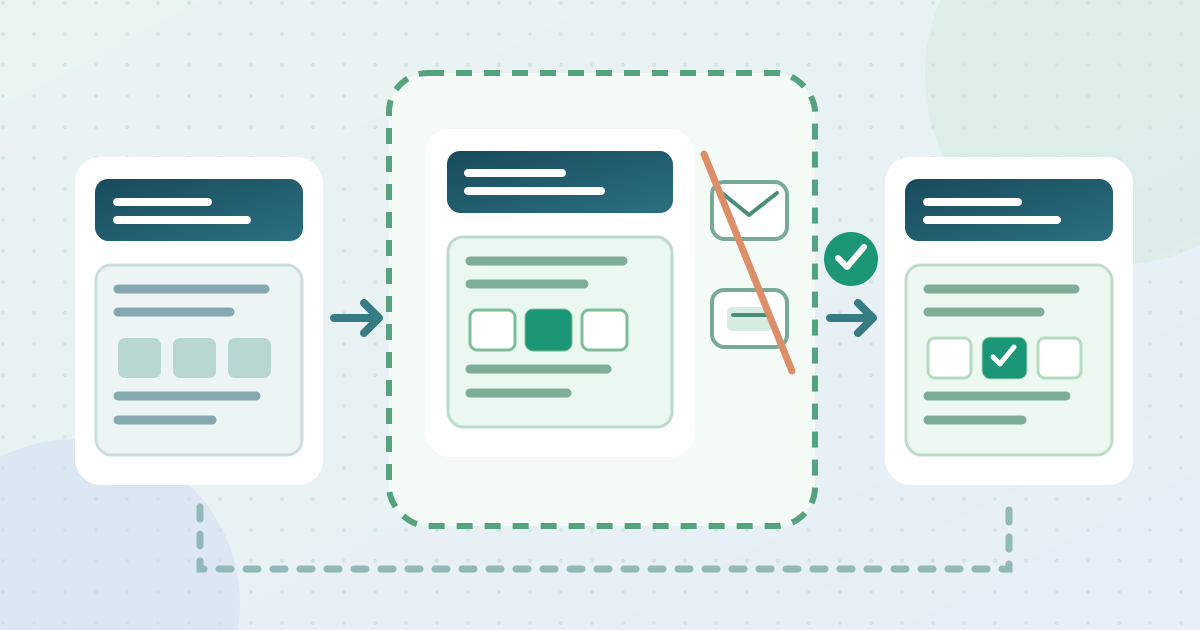
Before submitting a test form, scan or checkout, identify every outbound effect: attendee confirmation, staff alert, payment, inventory change, analytics event and external automation. Use provider test modes and test identities where available. For WP STAGING Pro, disabling outgoing email is a documented option, but other cloning methods require their own controls. WooCommerce notes that test orders can trigger emails and that extensions may not know an order is a test. Do not assume a staging label automatically suppresses messages or charges.[4][5]
Rehearse the event visitor journey
Write three or four concrete test journeys from the live problem. For a calendar change, check one current event, one future event and a direct event URL. For a form edit, submit a test entry and trace the intended acknowledgement and staff route without contacting real attendees. For a ticket flow, inspect ticket labels, date, price and capacity in the staging view, then use only the provider’s approved test transaction path. The Events Calendar is one example where staging can help rehearse a bulk import or RSVP change before publication.[1]
Compare staging against the recorded live baseline on both phone and desktop. Check signed-out access, navigation, event date and time zone, form errors, ticket destination and a fallback path if an embed fails. Record each result with a page URL, environment name, change version and reviewer. If the copy does not reproduce the live configuration, note that limitation rather than declaring the change ready. A test that reaches the wrong checkout or still sends a real alert is a failed staging boundary, even if the page itself looks correct.
Release a reviewed change and check production
Before release, determine exactly which files, settings or content records will be promoted. Do not casually push an entire staging database over an active ticket site. WordPress.com documents that a database sync can replace production user lists and newer commerce orders; the precise effect depends on the chosen host and tool. If production has acquired registrations since the clone, have the responsible operator compare data before any sync. For a small copy change, controlled editing on production after review may be safer than a full database replacement.[2]
Use the approved release window and recovery plan. After applying the reviewed change, open the production event page signed out and repeat the critical journeys: event facts, registration or ticket link, acknowledgement route, and one unaffected page. Check that no test banner, placeholder event, test email setting or payment mode was carried into production. Record what moved, who verified it and the time. Keep or retire the staging copy according to the host’s policy and the next planned test; do not treat its existence as evidence that the live page is correct.
Sources and further reading
- How to Set Up a Staging Site for Your WordPress WebsiteNexcess Documentation · Accessed
- Create a staging siteWordPress.com Support · Accessed
- Settings Reading screenWordPress.org Documentation · Accessed
- Deactivate Sending Emails From Staging SiteWP STAGING Documentation · Accessed
- Testing ordersWooCommerce Documentation · Accessed