How to troubleshoot slow third-party embeds on an event website
A video, map or ticket widget can turn a fast event page into a slow one, yet removing the wrong script can break checkout. The web.dev third-party JavaScript guide starts with identifying the provider and measuring its impact before choosing a loading strategy. For an event site, the decision also depends on whether the embed is essential to finding or buying tickets. Use this inventory and comparison record to isolate the cause without treating every external request as expendable.
Boletolibre editorial team
Published
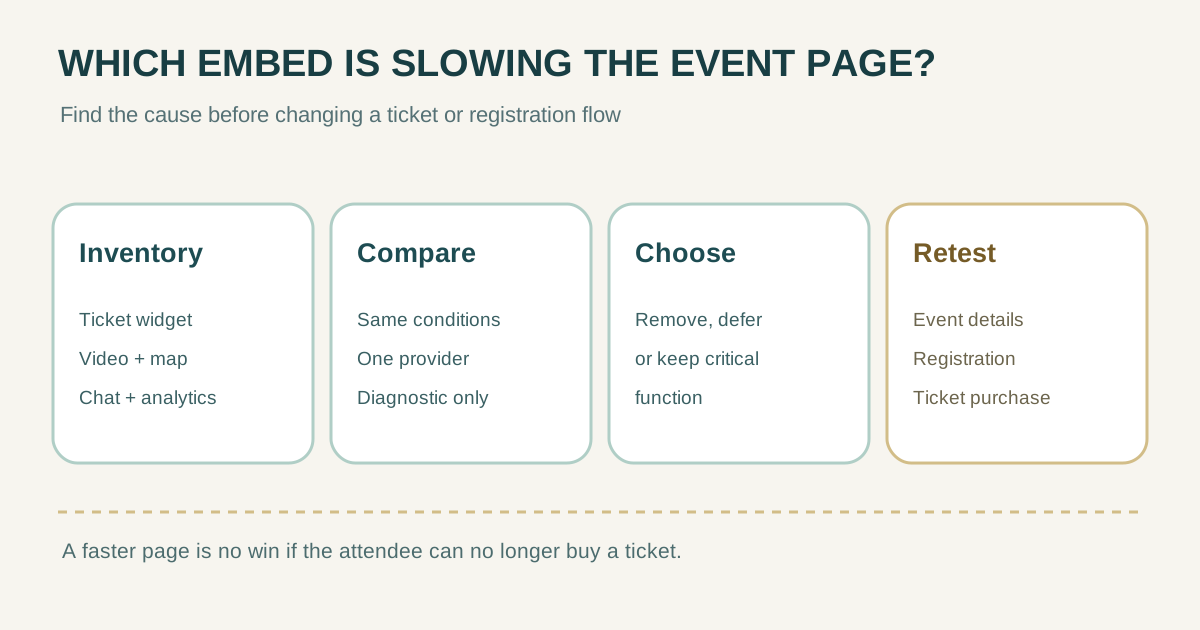
1. Map every embed to an attendee task
Open the event page and list each external video, map, ticket widget, chat, analytics tag and consent service. Record who approved it and which page loads it. A ticketing component may be essential on a purchase page but unnecessary on a venue-directions page. An autoplay video can be decorative; a map may help wayfinding but still needs an address in page text.
| Embed | Why it is present | Critical at first view? | Fallback |
|---|---|---|---|
| Ticket widget | Ticket selection or checkout | Often yes on purchase path | Provider-approved direct ticket link |
| Video | Show event preview | Usually no | Poster image and optional play action |
| Map | Show venue location | Often no | Venue address and directions link |
| Chat / social / analytics | Support, sharing or measurement | Depends on need | Contact route or accepted measurement gap |
The web.dev guide notes that third parties can add network requests, JavaScript work, large media and unpredictable behavior, even when loaded asynchronously. Audit by purpose, not by domain count alone.[1]
2. Compare the page with one provider changed at a time
- Capture the same URL, device, network profile, cache state and run time for a baseline. Check the page’s network waterfall and script activity.
- Identify the provider origin and resource type. In a local diagnostic view, block or delay just that provider’s requests and repeat the observation; do not publish a broken purchase flow.
- Repeat enough times to distinguish a consistent pattern from a one-off slow response. Record visible content timing and whether taps on the registration or ticket control still work.
- If the blocked resource is essential, mark the comparison “diagnostic only.” Restore it before any public test or release.
web.dev recommends DevTools or WebPageTest to identify costly third parties and compare a page with and without a suspected resource. Chrome DevTools supports request blocking and throttling for diagnosis. A faster page with a disabled ticket widget is not a successful fix.[1][2]
| Comparison log | Record |
|---|---|
| Provider / URL pattern | ________ |
| Baseline conditions and observation | ________ |
| One-resource diagnostic change | ________ |
| Difference in load or interaction | ________ |
| Visitor task still works? | Yes / No / Not tested |
3. Choose the smallest safe loading change
| If the embed is… | Candidate action | Check before release |
|---|---|---|
| Unneeded | Remove from the page or tag manager | No lost attendee task or required measurement |
| Useful below the fold | Load when approaching view or after an intentional tap | The visitor never waits for a blank essential area |
| Required for checkout | Keep available; coordinate with vendor, consider approved handoff | Ticket path, price and confirmation still work |
| Large media | Use a poster/preview until requested | Accessible controls and licensing remain correct |
| Script delaying document parse | Review vendor-supported async/defer or placement | Initialization order and consent behavior still correct |
Async or defer can reduce parser blocking but not erase network or CPU cost. Lazy loading is useful for content not immediately needed, while self-hosting a vendor script transfers update and security responsibility to you. Check the vendor’s integration guidance and agreement before changing how a ticket or payment component loads.[1]
If a third-party vendor is slow or unavailable, provide an honest fallback where possible: a venue address instead of a blank map, or a tested provider-approved ticket link instead of a broken widget. Do not show a “buy” button that cannot complete the purchase.
4. Retest the real event journey
- On a phone and desktop, load the event details, reach registration and follow the ticket path using safe test data.
- Check first visit and, if relevant, repeat visit. Verify the embed works after scrolling, consent choice or a tap.
- Record whether the change affected event facts, analytics, privacy notices, focus order, provider redirects or confirmation.
- Assign an owner for any remaining provider problem and retest after a vendor or tag update.
Keep the comparison and the final visitor-path result together. Performance improvement only counts if the visitor can still complete the important task. A slow external checkout should be reported to its provider with the observed URL, conditions and timestamp, not hidden by a score for your landing page.
Sources and further reading
- Load Third-Party JavaScriptweb.dev · Accessed
- Request conditions: block or throttle network requestsChrome for Developers · Accessed