Troubleshoot a double opt-in signup that never confirms
A person says they joined your email list, but the campaign audience still does not include them. The form may have accepted a submission without a completed confirmation, the confirmation message may not have reached the right inbox, or the link may have been opened without a status change. Treat these as separate checkpoints. This guide gives a controlled way to find the first broken handoff without turning a pending address into a marketing subscriber by assumption.
Boletolibre editorial team
Published
Define the exact confirmation path
Double opt-in has at least two different events: a person submits a signup form, then acts on a confirmation message. Mailchimp says a confirmed email contact becomes subscribed only after the link is used. Its pending state means a form was completed but confirmation has not occurred, and Mailchimp does not show those pending email addresses in the normal audience view. Other providers may expose different states. A submission count or thank-you screen is therefore not a verified subscriber count.[1][2]
Name the exact form, audience, provider and route before testing. A hosted provider form, embedded form, website connector and API integration may have different settings and logs. Mailchimp specifically says its email double-opt-in setting applies to Mailchimp signup forms; do not assume that changing this setting repairs an external form or API path. Keep confirmation separate from any optional final welcome email or later marketing automation.
Reproduce with a controlled address
Use a fresh, controlled inbox that you can inspect. Record the form URL and version, test address alias, audience, opt-in mode, local time and time zone, and the expected success page. Avoid using a real subscriber’s unique confirmation link in a shared screenshot or support ticket. If you need to retest, choose another controlled address or the provider’s supported reset process so an earlier attempt does not blur the result.[1]
Run one baseline from the same path a visitor uses, with browser extensions and cached login state noted. Then run one deliberate variation: for example a hosted form versus the embedded form, or an alternate receiving mailbox. Change only one variable at a time. This makes a failed result actionable. A test that starts from an admin preview or manually added contact is not evidence that the public signup path works.
Check whether the form really submitted
After submit, record whether the form showed a validation error, an anti-bot challenge, a “check your email” page, or no response. A visible form error means the failure is before the confirmation email stage. A success page shows only that the browser reached that page; verify that the provider accepted the request before blaming mail delivery. Capture the screen and timestamp, but mask the full test address and any tokens in a shared report.[1][3]
For a Mailchimp-native path, its documented flow includes a required reCAPTCHA step and a signup thank-you page before the opt-in confirmation email. That sequence is provider-specific. If an embedded or integrated form redirects to a custom page, compare the page with the provider’s actual submission or event evidence. A redirect that always says “success” can conceal an API or validation failure.
Check the confirmation message, not just the thank-you page
Inspect the controlled inbox for the confirmation message, including spam, quarantine and filtered folders that you can legitimately access. Record its sender, arrival time, subject, and whether it names the expected list. Do not treat a missing message as proof of a single cause: submission may not have reached the provider, the message may be delayed or filtered, or the address may already be in another state. Check the provider’s available event or delivery evidence before changing DNS or copy.[1]
Mailchimp describes the opt-in confirmation email as the message containing a unique URL. Mailchimp documents customization of that email and related response pages, but the editing location depends on the form builder in use. Confirm that the message being inspected is that confirmation email, not an optional final welcome email or a standard campaign. If the email arrives in one controlled inbox but not another, record the difference and escalate with timestamps and masked evidence rather than repeatedly sending to a real person.
Test the link without sharing it
Open the actual confirmation message in the test inbox and follow its link once, using a normal browser. Record the destination and any error or expiry message; do not paste the unique URL into a document or issue tracker. If a security product pre-opens links, compare the provider’s status evidence with the human-visible result and ask the provider how it handles automated link visits. Do not claim the contact confirmed solely because a click counter increased.[1]
A useful differential test is a new controlled address through the same form after any fix. If the first link fails but a fresh one works, keep the original case as unresolved until you know why. If the browser lands on a confirmation thank-you page but the contact remains unconfirmed, the page and the provider’s state disagree; investigate that handoff. Avoid manually overriding status to make the test green.
Verify the final contact state
Check the contact’s final marketing status through the provider’s supported view or event record. In Mailchimp, subscribed and pending mean different things, and pending addresses are not visible in the ordinary audience table. A missing row is not enough by itself to distinguish a pending submission from a failed submission. Your test evidence should connect the form attempt, the confirmation message and the resulting subscribed status for the same controlled address.[2]
Also verify which audience received the contact and whether the contact was already unsubscribed, cleaned or otherwise ineligible. Do not infer permission from a ticket purchase, a service notification, or a form thank-you page. If the provider says the contact is still pending, do not add them to a marketing send or silently mark them subscribed. Record the unresolved state and follow the provider’s supported and locally appropriate recovery route.
Classify the failure and decide what to release
Classify the earliest failed checkpoint: form rejected; form accepted but message not evidenced; message received but link failed; link seemed successful but status did not change; or status confirmed in a different audience. Assign one owner and one next test to that checkpoint. The worksheet prevents a broad “email is broken” ticket from hiding the exact handoff. A controlled example: the website thank-you page appears at 10:04, but no provider submission event exists; the form connector, not the mailbox, is the first thing to repair.[1][2]
| First failed checkpoint | What to inspect next | Do not conclude |
|---|---|---|
| No accepted submission | Form validation, anti-bot step, connector response | That email delivery failed |
| No confirmation message evidenced | Provider submission/event evidence and receiving inbox | That the person is subscribed |
| Link or thank-you mismatch | Exact test link outcome and provider status | That a page view completed confirmation |
| Subscribed in another audience | Audience/form routing and test record | That the intended list is ready |
Before promoting the signup route, repeat the full path with a fresh controlled address and confirm the expected final status. Keep the launch held if the only evidence is a success page or a delivered confirmation email. Document what the provider can and cannot show, and preserve only the minimum masked evidence needed to resolve the incident. The worksheet is an operational diagnostic, not a legal ruling or a promise that every provider exposes identical statuses.
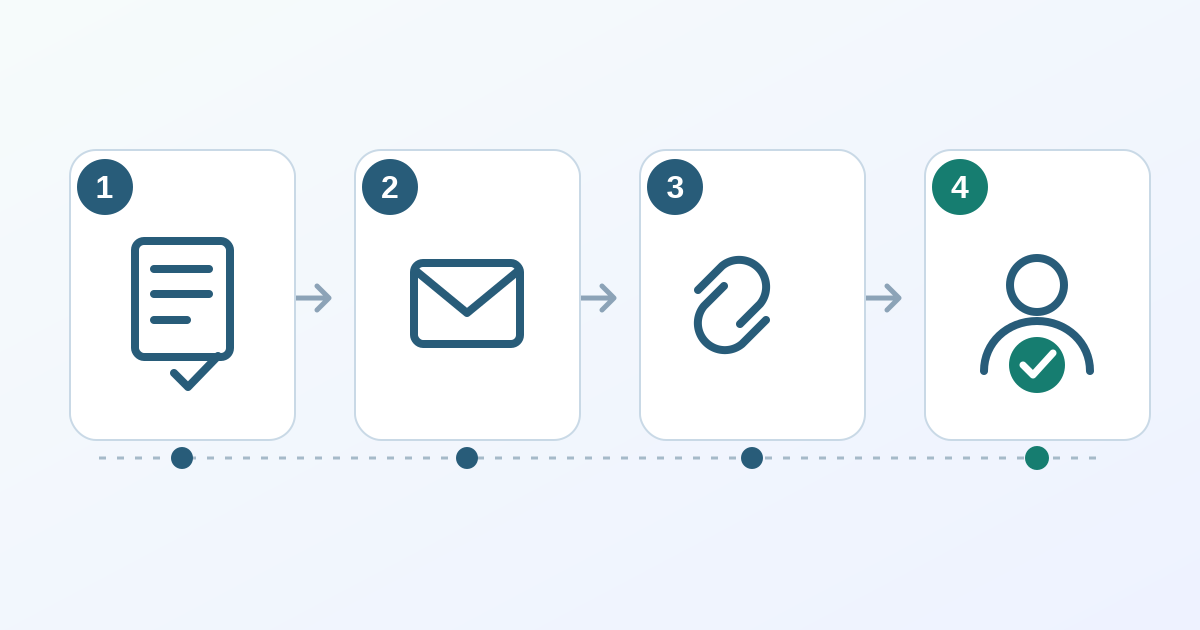
Use the four-checkpoint evidence card
Record one test per card, then compare the first failed checkpoint after a repair. Keep unique links and full addresses out of the shared copy.
Sources and further reading
- About Double Opt-inMailchimp · Accessed
- About Your ContactsMailchimp · Accessed
- How the Form Builder WorksMailchimp · Accessed