Event website form says success, but no staff email arrives: trace the missing alert
A visitor sees a success message on an event website, yet the organizer receives no inquiry. The message may be saved in the form system, misrouted by an alert rule, handed to a mail service and rejected later, or hidden in a mailbox. Do not change DNS or ask visitors to submit again until you know which step failed. This guide traces one controlled submission through the full path and keeps an alternate contact route visible while you repair it.
Boletolibre editorial team
Published
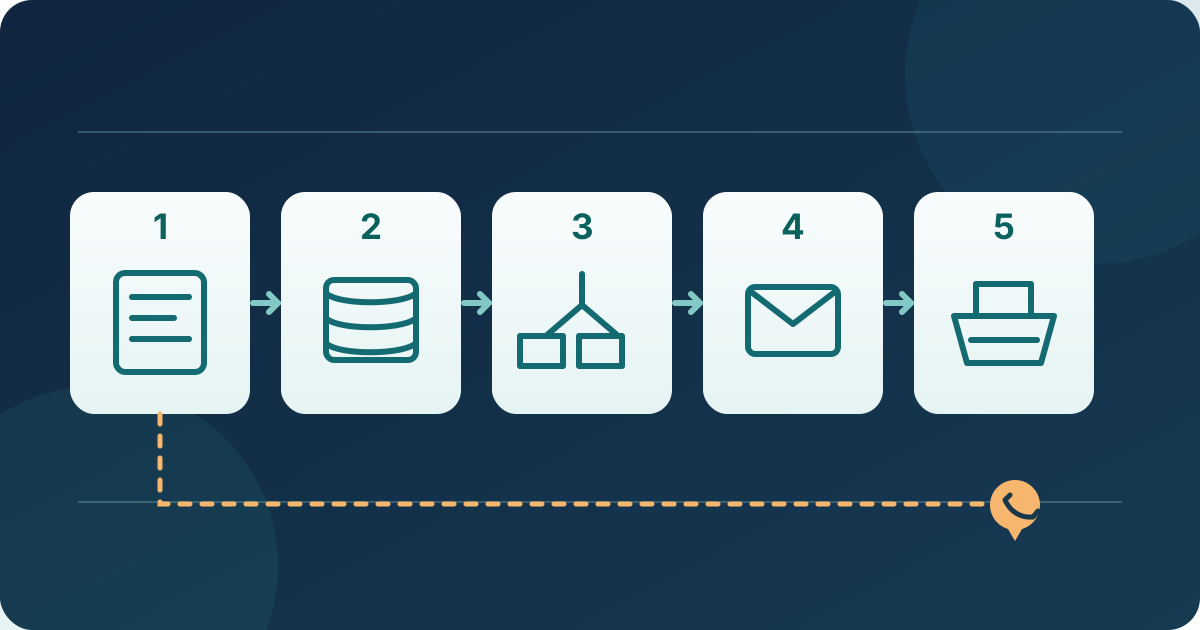
Name the exact form and protect the visitor route
Download the missing form-alert incident sheet (Markdown, English)
Identify the published URL, language version and form purpose: general contact, speaker question, exhibitor request, volunteer inquiry or accessibility contact. Record when staff first noticed the gap, the expected recipient, and whether visitors reported a failure or saw a success message. A success screen describes what the site told the visitor; it is not proof that a staff mailbox received an alert. W3C advises clear success and error feedback, so keep the visitor-facing wording accurate while you investigate.[1]
If inquiries may be time-sensitive, place a maintained alternative contact method on the same page or an easily reached help page. Use a staffed address or phone route the organization has approved, and identify who checks it. Do not promise that unanswered form submissions will be recovered. Avoid publishing an incident notice that exposes a submitter's details or gives an unconfirmed cause.
Prove whether the submission was retained
Make one clearly labeled synthetic submission on the live form only when your team permits it. Use a managed test address and harmless sample text; do not copy a real attendee's message or create a paid registration. Note the time, time zone, exact URL, visible success or error text, and any confirmation or submission ID. If the form has a dashboard or export, look for that exact test record. Search the right event, form and date range; some tools separate draft forms, archived events and different language versions.
If no record exists, investigate validation, form endpoint, access or integration errors with the website owner. Mail settings are not the first repair. If the record exists, leave the visitor's submission path alone and continue down the notification chain. If the platform retains earlier inquiries, assign an authorized staff owner to review unhandled records without exporting personal fields into a broad email thread.
Check the alert rule and the intended recipient
Open the notification settings for this specific form or event. Confirm that organizer alerts are enabled, the trigger matches the submitted form and status, and the destination address is spelled correctly and still belongs to an active team member or shared inbox. Check whether alerts are immediate, batched or sent only for a selected event state; a delayed digest is not a missing message. If an automation branches by question, ticket type or locale, trace the branch used by your synthetic record. Inspect the actual published configuration rather than an unsaved editor draft.
Keep attendee acknowledgements separate from organizer alerts. A visitor receipt can work while staff routing fails, and the reverse is possible. Wix Forms, for example, uses an automation to choose who receives form-submission notifications; its default recipient is the site owner's email. Those are provider-specific controls, not instructions for every site. Record the existing rule before changing it, change only the confirmed fault through the provider's supported settings, and keep a named owner for the destination.[4]
Follow the mail service without equating sent with received
If the form record and rule are correct, ask the website or mail-service owner for the notification event associated with the test time or ID. Separate attempted, accepted/queued, delivered, bounced, rejected and suppressed states according to the provider's actual labels. A dashboard that says it accepted a send is not a read receipt. WordPress's own `wp_mail()` reference says a successful function return does not prove the recipient received the message; that is a useful limit, not a claim about every platform's implementation.[2]
Check the configured From and Reply-To separately. The submitter's address may belong in Reply-To, while the sending identity must follow the chosen service's instructions. If the provider reports authentication failure, have the domain/mail owner compare a representative message's headers with that provider's current setup. Google's Gmail rules require SPF or DKIM for mail sent to personal Gmail accounts (@gmail.com or @googlemail.com) and additional controls for high-volume senders; satisfying a DNS checker alone cannot prove inbox placement. Do not paste new SPF includes or change DMARC policy just to make one alert appear.[3]
Inspect the receiving mailbox and staff handoff
Confirm which mailbox the rule targets and which person actually monitors it. Search all mail folders and any managed quarantine using the synthetic subject, sender and timestamp. Check inbox filters, forwarding, group membership and a disabled or full mailbox with the mail administrator. A provider's delivered status usually means its defined delivery event, not that a staff member saw the message. Test a second approved recipient only if the platform supports a safe temporary route, then restore the intended routing after diagnosis.
Wix Forms help recommends checking spam or junk folders and the automation's notification recipients when a form alert is missing. Use those checks for the relevant provider without assuming Wix's exact menu names, sender address or delivery behavior elsewhere. If the staff inbox works for ordinary mail but not this form's alert, return to the notification and sender evidence rather than repeatedly asking visitors to try again.[4]
Retest, recover and close the gap
After the responsible owner makes a targeted fix, submit another labeled synthetic inquiry through the exact published form. Record the form response, saved record, alert rule, provider event and received message in the intended mailbox. Check on a phone and with keyboard access that the success or error feedback and alternate contact route remain usable. Remove or clearly label synthetic records according to the team's retention process.
Review the period when alerts were missing. If submissions were retained, route unanswered inquiries to authorized staff for follow-up through the normal support process; do not assume the mail service will replay them automatically. If records were not retained, publish an accurate way to contact the team and let the owner decide whether a broader correction message is needed. Log the repair time, affected forms, evidence, person monitoring new alerts and next scheduled controlled check. The same diagnostic sheet can be reused after a form, mailbox, sending service or domain change.
Sources and further reading
- User notification in formsW3C Web Accessibility Initiative · Accessed
- wp_mail() referenceWordPress Developer Resources · Accessed
- Email sender guidelinesGoogle Gmail Help · Accessed
- Wix Forms: Choosing who gets notified about form submissionsWix Help Center · Accessed