Verify a venue partner’s referral traffic in GA4
A venue may link to your event from both its website and newsletter. GA4 can help check whether recorded sessions reached the intended page, but the Referral channel alone can miss a tagged email placement. Start with the actual links and one session-scoped report.
Boletolibre editorial team
Published
Decide what the report will count
Download the partner referral review sheet (English Markdown)
Use GA4’s Traffic acquisition report for sessions associated with a source and medium. User acquisition answers a different question: where a new user first arrived. A session is neither a unique person nor a click recorded on the partner’s site, and a visit to an event page is not a completed registration. Choose an event edition, web stream and complete date range before comparing rows. Keep ticket orders in their own source system.[1][2]
Record each link the partner published
Make a small link ledger first: partner host, exact placement, published destination, final URL after redirects, and any `utm_source`, `utm_medium` and `utm_campaign` values. Redact personal query values before copying URLs into a shared sheet. A normal untagged website link may appear as `venue.example / referral` if referral information survives. A tagged newsletter link with `utm_source=venue_newsletter` and `utm_medium=email` can appear under that source and medium instead. A missing or stripped referrer may leave the source unclear; do not invent a partner attribution from a Direct row.[4][6]
Find the partner in Traffic acquisition
In GA4 open Reports → Acquisition → Traffic acquisition. Set complete reporting dates and confirm that the data come from the intended property and web stream. Change the table’s primary dimension to Session source / medium; search for the known partner host and each planned tagged source. Record Sessions and Engaged sessions for each matching row, plus the extraction time. The Session prefix matters: do not silently switch to First user source / medium and compare unlike scopes. If a newly placed link is absent, allow for report processing before calling it zero.[1][2][8]
Check the page and the channel
Add Landing page + query string as a secondary dimension, or use the Landing page report with Session source / medium, to see which entry page pairs with each source. Verify that the intended current event edition appears. If query strings can contain personal data, prevent that data from reaching GA4 and never paste it into a shared worksheet. Read the source and medium together. GA4’s default Referral channel covers non-ad links from other sites, while a partner newsletter tagged with an email medium belongs to Email. Filtering only to Referral would hide that second placement.[3][5][9]
Read a two-placement example
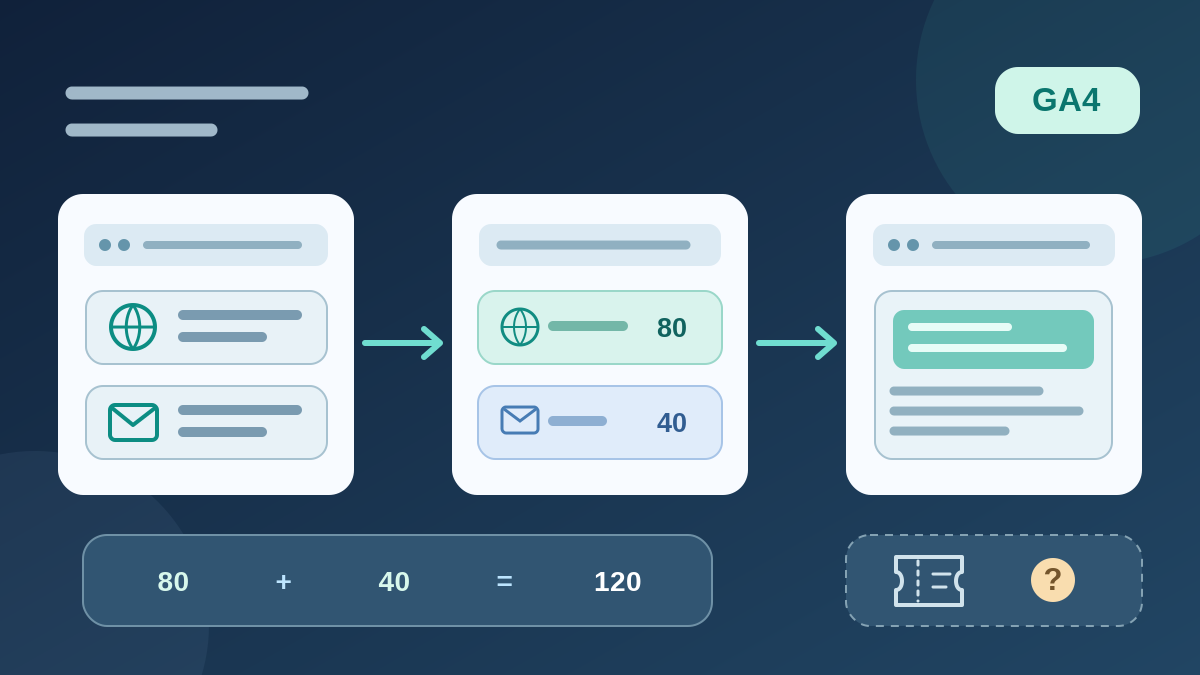
Suppose the same venue has a site listing and a newsletter. In one hypothetical week the site row records 80 sessions and 48 engaged sessions; the tagged newsletter row records 40 and 18. The two rows sum to 120 recorded sessions and 66 engaged sessions in that window. They do not mean 120 people, 120 partner-side clicks or 120 ticket buyers. Nor is the sum necessarily every visit the venue influenced: other links, stripped tags and privacy settings may leave evidence outside these two rows.[1][5]
| Placement | Observed session source / medium | Sessions | Engaged sessions | What it shows |
|---|---|---|---|---|
| Venue listing | venue.example / referral | 80 | 48 | Untagged site-link row |
| Venue newsletter | venue_newsletter / email | 40 | 18 | Tagged email row |
| Known rows together | Two separate rows | 120 | 66 | Recorded sessions, not orders |
Investigate a missing or surprising row
If a planned row is missing, replay the actual partner link on a test device and inspect its final destination and UTM values after each redirect. Check whether the partner used a different hostname, tagged source or event-edition URL. A Direct or unknown row is a reason to test the link, not proof that no one came from the partner. Do not put a legitimate venue domain on GA4’s unwanted-referrals list merely to tidy the report: that setting tells Analytics to ignore the referrer for attribution. Recheck a completed period after changes.[6][7]
Give the partner an honest readout
Send a bounded summary: reporting window, exact source/medium rows, landing pages, sessions, engaged sessions, link checks and any unresolved gap. Say “GA4 recorded 120 sessions in two known partner rows” in the example, not “the venue sold 120 tickets.” If registration or purchase data is available, reconcile it separately using its own definition and system. Assign one owner to repair a wrong destination or missing tag, then repeat the same report after the next comparable placement.[1][2]
Sources and further reading
- GA4 Traffic acquisition reportGoogle Analytics Help · Accessed
- Scopes of traffic-source dimensionsGoogle Analytics Help · Accessed
- GA4 Landing page reportGoogle Analytics Help · Accessed
- Traffic-source dimensions and manual taggingGoogle Analytics Help · Accessed
- Default channel groupGoogle Analytics Help · Accessed
- Understand direct / none trafficGoogle Analytics Help · Accessed
- Identify unwanted referralsGoogle Analytics Help · Accessed
- Data freshnessGoogle Analytics Help · Accessed
- Avoid sending personally identifiable informationGoogle Analytics Help · Accessed