Web fonts not loading after a host move? Trace the font request
A site can load its CSS normally yet display the wrong typeface after a hosting move. The font file is a separate request, and the browser may use a fallback when that file fails or does not match the text. Find one affected text element, its intended font, and the exact font request before making a change.
Boletolibre editorial team
Published
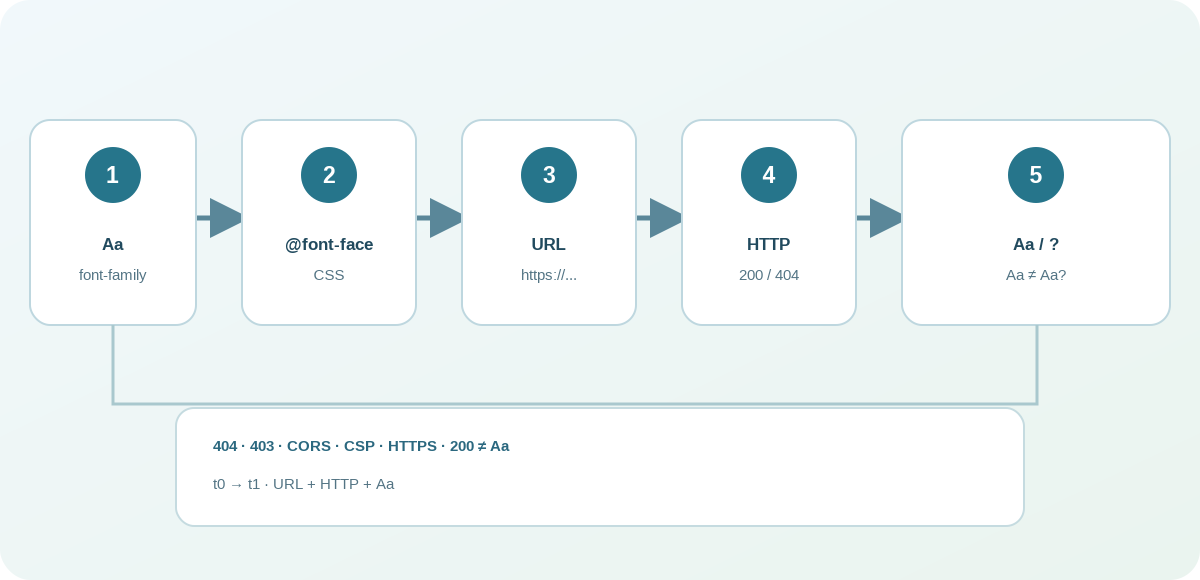
1. Confirm whether the intended font is used
Compare the public page with a known-good copy and select one clear example, such as a heading or ticket label. In browser developer tools, inspect that text and its applied font-family; also check the font actually rendered. A font-family list contains alternatives, so a different appearance alone does not prove the file failed. In Chrome, Elements > Computed > Rendered Fonts identifies the face actually used.[6][7][8]
Record the page URL, element, intended family and weight, and whether all visitors or only one browser see the change. Confirm that the stylesheet containing @font-face loads; if it does not, diagnose the stylesheet first. The @font-face rule points to the font through its src descriptor.[1]
2. Find the actual font-file request
Open Network before reloading, disable cache in DevTools, filter to Font and keep the log. Capture the font URL, status, final URL after redirects, response type, initiator and any Console warning. Chrome provides a Font filter and response details. If no font request appears, inspect whether the rule is applied to the selected element and whether a local or fallback face was chosen. A missing Network row can also reflect a CSP or mixed-content block, so check the Console before concluding that only a local or fallback face was selected.[3][2]
Do not assume a relative font URL is relative to the page. In @font-face, a relative src URL resolves from the stylesheet’s location; moving or bundling the CSS can change the resulting font path. Compare that resolved path with the deployed file.[2]
3. Match the observation to the failing layer
| What you see | Check next | Likely repair |
|---|---|---|
| 404 or old host in font URL | @font-face src and published file path | Correct source URL or publish missing file |
| Final 200 response contains HTML | Final URL and response body | Fix route or access redirect for that font path |
| CORS warning on another domain | Font response’s allowed origin | Permit the intended site origin at the font host |
| HTTP font URL on HTTPS page | Original CSS URL and Console | Serve the font over HTTPS and update the source |
| 403 on font file | Host/CDN object access rule | Find the rule for that exact public asset |
| 200 font response but wrong face | Applied family, weight and glyph coverage | Correct CSS mapping or provide an appropriate font |
| CSP `font-src` warning | Page policy and approved font origin | Allow that source in `font-src` after review |
Web fonts used across origins require the font server to allow the requesting origin. An HTTPS page can block an HTTP web font as mixed content. These are different from a missing file; use the browser’s specific error to choose the fix.[1][4][5]
A Content Security Policy `font-src` warning is a separate browser block: compare the approved font origin with the page policy. Change only the source that owns that policy; do not remove CSP to make a font load.[9]
4. Correct the source, then check each weight and language
Update the source of the @font-face URL or the asset publication, rather than editing only a browser cache. For a cross-origin font, configure CORS for the actual requesting site at the font host; do not open unrelated private resources. For a 403, inspect that asset’s access policy without weakening other paths. If a CMS generates font CSS, regenerate and republish through its supported workflow after correcting site URLs.[2][4]
Check regular and bold faces separately. A normal font file may load while a weight or character subset is absent, leaving only some text in fallback. Keep a generic family in the font-family list so information remains readable when a web font cannot load.[1][6]
5. Verify the public page after the fix
- Reload in a fresh session; confirm the exact font file returns a usable response and no CORS, mixed-content or CSP warning remains.
- Inspect the rendered font for a heading, body text, date/price and primary action. Check desktop and mobile.
- Repeat on translated pages with distinct characters; a loaded file can still lack glyphs for a locale.
Save the working request beside the failed one. If only one theme or page-builder output remains broken, give its owner the page, CSS URL, resolved font URL, response and rendered-font observation. That is enough to repair the specific generation path.[3][7]
Sources and further reading
- @font-face CSS at-ruleMDN Web Docs · Accessed
- src CSS at-rule descriptorMDN Web Docs · Accessed
- Network features referenceChrome for Developers · Accessed
- Cross-Origin Resource Sharing (CORS)MDN Web Docs · Accessed
- Mixed contentMDN Web Docs · Accessed
- font-family CSS propertyMDN Web Docs · Accessed
- Inspect mode: Quickly analyze element propertiesChrome for Developers · Accessed
- Disable local fonts / Rendered Fonts in Chrome DevToolsChrome for Developers · Accessed
- Content-Security-Policy: font-src directiveMDN Web Docs · Accessed