Add an internal note to an event ticket order
An internal order note can preserve a short operational handoff, such as an unresolved buyer contact or a question for the entrance lead. It is not a message to the buyer and does not itself alter a ticket. Check the platform’s note target and staff visibility before relying on it.
Boletolibre editorial team
Published
Choose the right order or ticket target
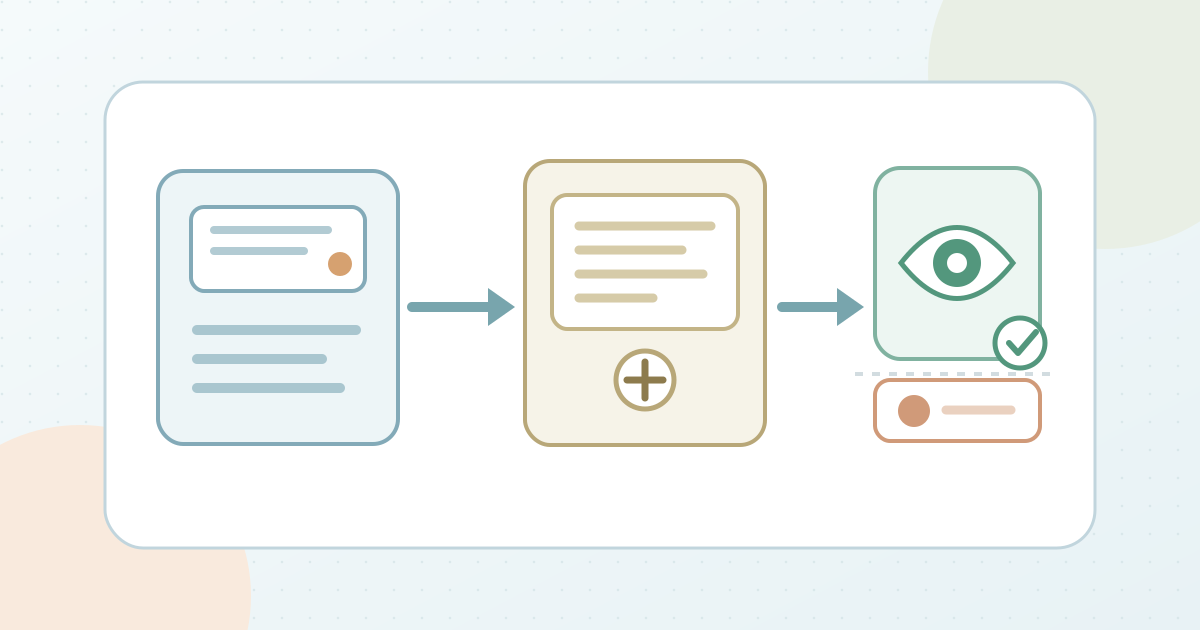
Find the exact event and order using the authorized order record. Decide whether the information concerns the whole order or one ticket within it. Eventbrite documents both order notes and attendee notes; CM.com’s Ticketing NXTGN guide documents a note on a specific order. Do not assume an order-level note is attached to every ticket or that a ticket-level note appears to all order workers. Record the target reference privately; the downloadable card uses blank placeholders and should not hold a barcode, email address or attendee detail.[1][2]
Write a short factual handoff
State what happened, what remains open, who owns the next action and when the note should be revisited. For example: “Support call logged; entrance lead to review the approved order record before admission.” Do not put payment data, medical details, full ticket codes or speculation in a note. If the person needs a reply, use the approved buyer-contact channel separately; an internal note is not proof a message was sent. If a gate decision is needed, follow the event’s admission process rather than treating the note as permission to override a scan.
Save through the platform’s note control
Use the provider’s documented action. In CM.com Ticketing NXTGN, open the order, choose + Add note in History, enter the text and save; the note appears in the order timeline with author and time. That provider limits notes to 400 characters. In Eventbrite, use Actions on the order or individual ticket, choose Add order note or Add attendee note, enter the text and add it. These are different paths; inspect the final note on the exact target before leaving the order.[1][2]
Verify visibility and resolve corrections
Check the intended staff surface with an authorized role. CM.com says its internal notes are visible to organizer and CM staff working on the order, not the buyer; Eventbrite says its notes appear in order information and at ticket scanning but not to attendees. Do not promise the same visibility in another app or role. If a note is wrong, use the supported correction route: CM.com permits the author to edit or delete their note, whereas Eventbrite says an added note cannot be edited or deleted and permits another note. Record the corrected outcome without duplicating private details. Close the handoff only when the owner has completed the separate action and checked the ticket state.[1][2]
Sources and further reading
- Add internal note to a specific orderCM.com Knowledge Center · Accessed
- Edit attendee information and add notesEventbrite Help Center · Accessed