Use GA4 annotations to record event launches and website changes
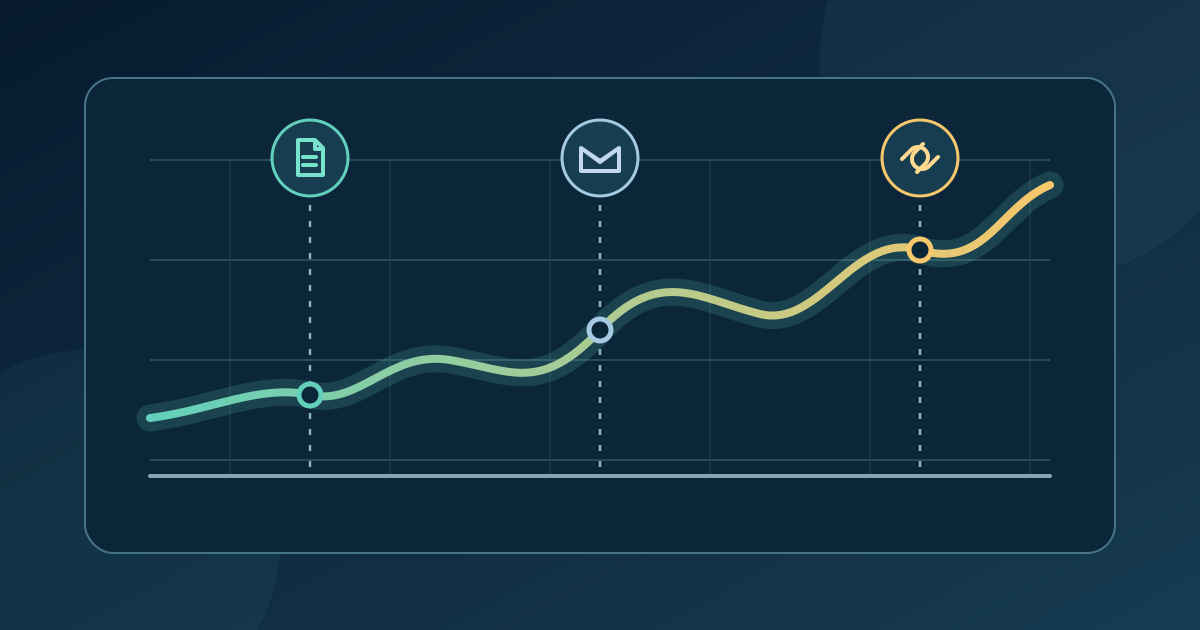
An event page may be published on Monday, a partner email sent on Thursday and a ticket link corrected on Friday. Looking at the traffic chart weeks later, those dates are easy to confuse. Google Analytics 4 (GA4) annotations put short notes on report timelines. Use them as a dated editorial record, then compare the report with your ticketing and campaign records; an annotation does not explain a spike by itself.
Boletolibre editorial team
Published
Download the event change log
Download the event annotation and change-log worksheet (Markdown, English)
Copy one row per confirmed change. The worksheet separates what was published from what the report later showed, so a hunch does not become a recorded fact.
Choose changes worth marking
Record events that may help a future reader interpret the chart: the public event page launch, a registration opening, a major campaign send, a corrected date or venue, a ticket-link destination change, or an analytics-tag repair. Record the actual live or send date, not a planned deadline. For a change that took several days, keep the start and end in your source log and decide whether a date range is useful in the annotation.[1]
Keep the event edition, exact page or campaign, editor, and evidence link in the worksheet. A published-page check, release record, or send report is stronger than memory. Avoid guest names, ticket identifiers and other private details in a shared annotation.
Add a concise GA4 annotation
In GA4, open Reports and a report with a line graph. Right-click the data point for the confirmed date, choose Add annotation, enter a short title and description, select a single date or date range, and create it. Google says an Analyst or higher property role is needed to create or edit annotations; a Viewer can see them. Its current limits are 60 characters for the title and 150 for the description. The note appears across reports and report cards with line graphs for that property, so write for the whole team rather than one chart.[1]
For example, title a note ‘Autumn fair ticket link updated’ and describe the destination changed on the live event page. Put the longer URL, change owner and confirmation evidence in the worksheet, not in the short annotation.
Read the trend with the right evidence
Look at the same metric, date range and reporting setup before and after the marker. Ask whether another send, listing, outage or measurement change happened nearby. A traffic rise after the email note is timing evidence, not proof that the email caused every visit or sale. Compare visits with completed registrations or orders only through the system that actually records those actions; keep their counting rules separate.
Correct the record after release
After the event, review the annotations against the worksheet. Correct an inaccurate date or description, remove duplicate notes, and record who checked the published page and report. Google also provides an Annotations area under Admin for viewing a property's notes; availability to edit depends on your role. Keep the source log with the event report so the next edition can distinguish a content change from a measurement change.[1]
Sources and further reading
- About annotationsGoogle Analytics Help · Accessed