Set up and check an automatic ticket price threshold
A quantity trigger can change one ticket's price or reveal a different ticket tier. Decide which behavior you need before configuring the sale; the two are not interchangeable.
Boletolibre editorial team
Published
Define the trigger and the offer
Record the ticket type, current price, trigger unit and intended next offer. Verify whether the provider counts tickets sold, tickets remaining or another threshold. Keep this rule separate from event capacity and ticket quantity. Note any sale window or access restriction that also determines visibility.
Use the provider's actual mechanism
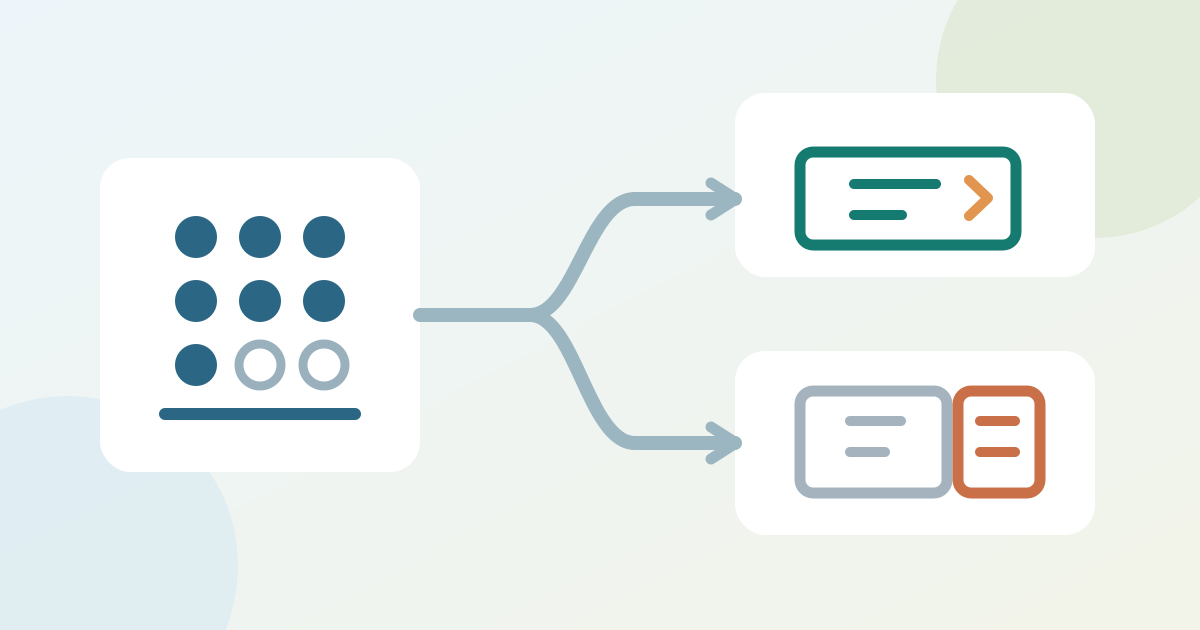
Eventbrite's Dynamic price rule changes an existing ticket type on a date or after a sold-ticket threshold; rules for one ticket must share a threshold type. Ticket Tailor instead creates separate ticket types and can reveal the next one when the earlier type runs low, using its buffer quantity. These are different mechanisms. Save the trigger and expected next price or type.[1][2]
Check the buyer view at the transition
Before launch, confirm the starting offer in any available preview. At the threshold, open the live buyer page signed out; record price, ticket name, availability and any overlapping tier. Do not infer effects on started checkouts or earlier orders. If the expected offer is absent, check counts, visibility and sale dates before changing settings. Assign an owner to watch and log the transition.
Download the ticket threshold setup and buyer-view check card (Markdown, English)
Sources and further reading
- Set up automatic ticket price changesEventbrite Help Center · Accessed
- How to set up tiered ticket pricingTicket Tailor Help Centre · Accessed