Sponsor logo missing on your event site? Check for hotlink protection
A sponsor logo may show as a blank space or placeholder on your event page even though it opens on the sponsor’s site. One possible cause is hotlink protection: your page requests an image from another domain, and that host rejects the request. Do not assume every missing image has this cause. Start with the published page and the approved logo source.
Boletolibre editorial team
Published
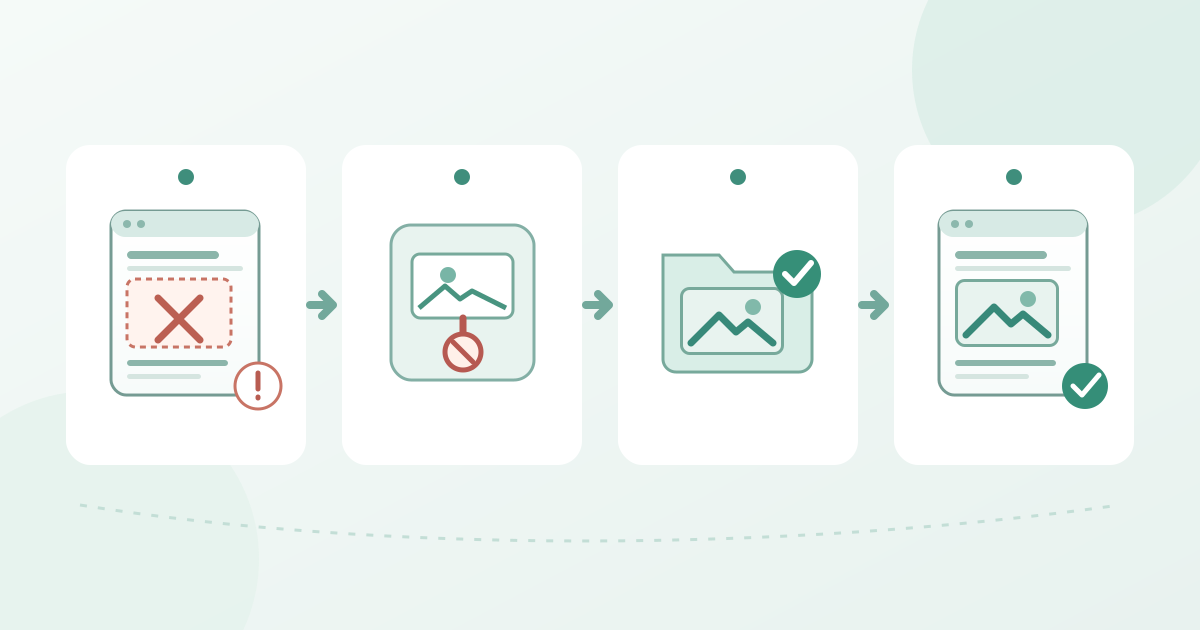
Record what the visitor sees
Open the exact public event URL and record the sponsor name, page language, device, missing image position and image address. Note whether the image lives on your event site, a sponsor domain or a third-party asset host. Keep the sponsor’s name as readable text and its approved destination as a normal link so the entry still makes sense while the picture is unavailable.
Inspect the image request
In the browser Network panel, reload the page and find the failed image request. Record its final URL, host, status and any redirect. Chrome’s Network table can show HTTP status codes and browser failures; a 404, denied request and timeout call for different repairs. A blocked or missing logo alone does not prove hotlink protection.[2]
Compare the failing request on the event page with the file on the source site. Some hosts, including Cloudflare when its Hotlink Protection is enabled, can reject an image request whose Referer points to another site. Ask the image-host owner to confirm its rule before changing any setting.[1]
Use an approved, controlled image source
Ask the sponsor or your sponsor lead for an approved logo file and display instructions. If your event-site editor supports image uploads, place that file in an asset location your team controls and update the actual sponsor entry. If the image must remain external, ask its host owner for a supported public URL or a narrowly scoped allowance. Do not disable someone else’s hotlink protection or copy a logo from a page merely because it is visible there.
Publish and test the public result
After publishing, open the event page on a phone and desktop, preferably without an old browser cache. Confirm the logo, nearby sponsor name, text alternative and destination link; inspect the image request again. Check translated pages and any other placement that reuses the same source. If the replacement still fails, log the observed URL and status for the site owner rather than making another broad settings change. Record who approved the asset, who changed the page, and the final visitor test in the worksheet.
Download the sponsor-logo repair worksheet (Markdown, English)
Sources and further reading
- Hotlink ProtectionCloudflare Developers · Accessed
- Network features referenceChrome for Developers · Accessed