Publish an event photo gallery on your website: source, embed and visitor checks
An event photo gallery is a way for visitors to find approved pictures, not a substitute for a written event recap. Before adding a grid to your website, decide which album is public, who maintains it, and what visitors should be able to do. Then test the published page and its direct-link fallback as a visitor.
Boletolibre editorial team
Published
Choose the approved album and update owner
Download the editable gallery release matrix (English Markdown)
Start with images cleared for this public page. Record the album URL, its owner, the event edition and the last approved version. Keep the working upload folder separate from the public source; otherwise a later upload may appear before review if the gallery updates automatically. Confirm the actual behavior of your chosen service.
Choose a small opening group that helps a visitor recognize the event. Give the page a plain title, event date and short introduction so the photos have context. For later batches, assign an approver and public-album editor.
Choose a page gallery, an embed or a direct link
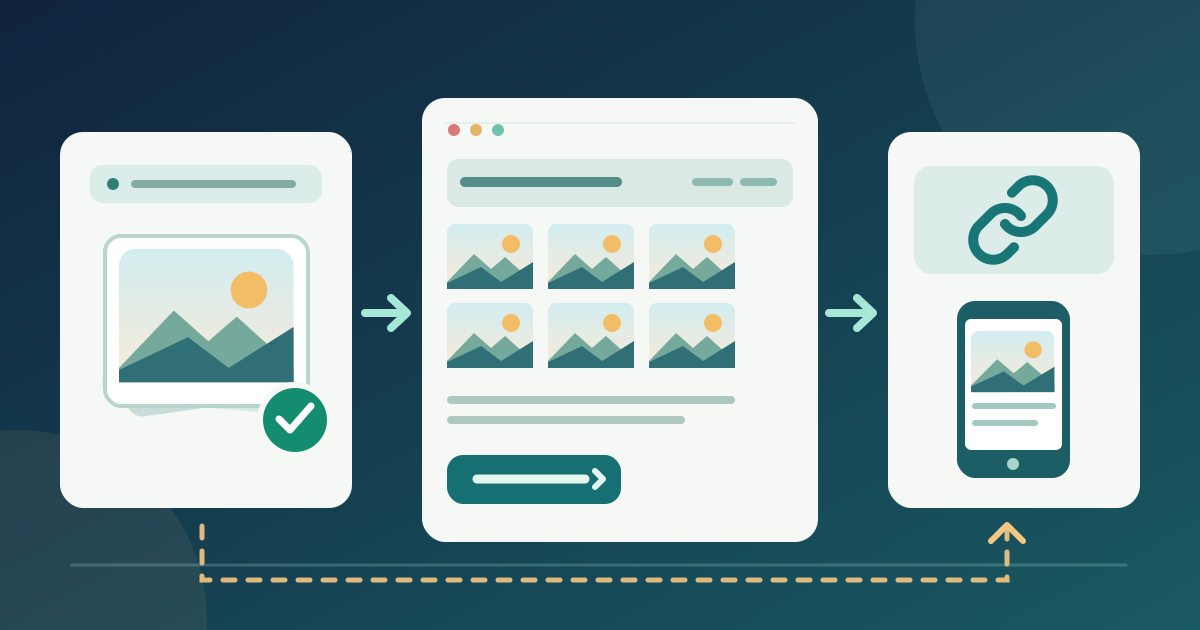
If your website editor has a native gallery, use its documented image and caption controls. For an external album, obtain embed code from the provider’s current instructions and place it only in a supported embed field. Give an iframe a descriptive title. An editor preview does not prove public access.[4]
Keep a clearly labeled direct album link beside an external embed, and test its access separately. If your event page is on Boletolibre.com, keep that page as the event and ticket destination and link to the external gallery when an embed is unsupported.
Check what visitors can see and do
Open the gallery in a signed-out browser. Check whether every intended photo appears, whether captions and dates are correct, and whether opening a photo or choosing Download follows the setting your team approved. Do not promise controls absent from the embedded view.
Write alternative text for informative photos according to what each one conveys in this page. Captions can identify a person, activity or moment when the source record supports that detail. A linked image needs a text alternative that describes the link’s function. Check photo order and captions without images.[1]
Test the published page on phone and keyboard
On a phone, open several images, move through the gallery and return to the event page. With a keyboard, reach the grid, open and close any lightbox, and check where focus goes next. For a modal lightbox, compare focus and Escape behavior with the W3C pattern.[2]
Reload the published page over a slower connection. Then simulate a failed embed while the album service still works and confirm the direct link opens. If the album service itself is unavailable, that link may fail too; keep the event page readable and provide an accurate unavailable notice with a confirmed update or contact route. Third-party embeds can add loading and layout work, so observe this page. Record device, outcome and correction owner.[3]
Maintain the gallery and retire stale images
After publication, assign one person to compare the live grid with the approved album when photos are added, removed or recaptioned. Recheck the signed-out link and embedded view after a provider-setting, account or website change. Correct the live page as well as the source if a photo is withdrawn; do not assume a cached or copied version disappears immediately.
When the event is archived, decide whether the gallery remains public, moves to a stable archive or is removed. Update the page introduction and direct link to match that decision, then test the result. The editable release matrix records source, settings, visitor checks and next review separately from internal photo approvals.
Sources and further reading
- Images TutorialW3C WAI · Accessed
- Dialog (Modal) PatternW3C WAI · Accessed
- Best practices for using third-party embedsweb.dev · Accessed
- Using the title attribute of the iframe element (H64)W3C WAI · Accessed