How to retire an event payment link without stranding attendees
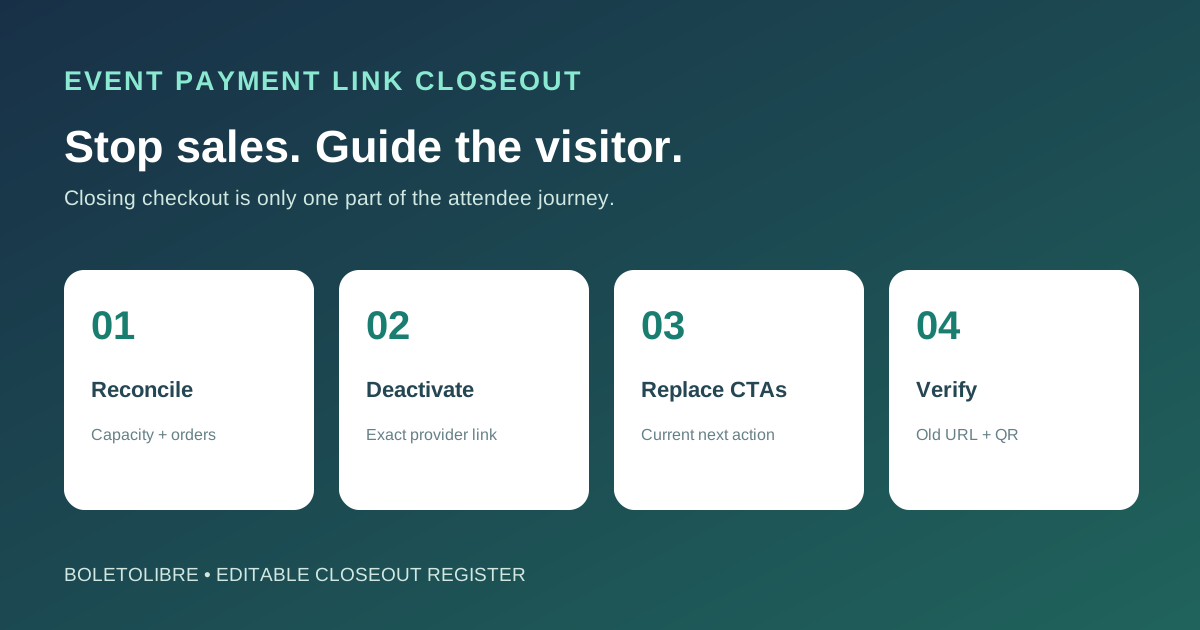
An event can sell out while an old payment link remains in a website button, email, QR code or partner post. Closing the provider link stops new checkout through that URL, but it does not update every place that promised a ticket. Use this event-specific closeout to reconcile sales, stop checkout, replace the message, and check the paths an attendee may still follow.
Boletolibre editorial team
Published
Find every route to the payment link
Download the editable payment-link retirement register (Markdown, English)
Start with the exact provider URL and link identifier, event edition and ticket offer. List buttons, menus, embedded widgets, scheduled emails, social profiles, QR codes, partner pages and printed materials. Record which placements you can edit and which are already distributed. The original Google result is an organizer who reached full capacity; their immediate question is how to stop one checkout link, but a complete closeout also has to address those other routes.[1][2][3]
Choose the next action before closing sales
Confirm the actual remaining capacity and paid orders with the registration or ticket source of truth. Decide whether visitors should see “sold out,” an official waitlist, another valid ticket type, a support contact, or an event-cancelled notice. Do not redirect a former buyer to a new purchase path if no inventory exists. Keep existing purchasers’ confirmation, admission and refund support separate from the ability to make a new payment.[1][2][3]
Disable the correct provider link
Use the payment provider’s current controls for the exact link, with the account owner or authorized operator. Square says a deactivated or deleted Payment Link becomes unavailable to anyone with its URL and describes that action as irreversible. Stripe exposes an active flag: an inactive link shows a deactivated page, and its API supports an inactive message. Products differ, so check your provider’s current help and test the result rather than copying an old dashboard path. Do not delete transaction records or assume prior orders disappear.[1][2][3]
Replace your own calls to action
Change the event page, header, FAQ and any editable partner copy to the chosen next action. If the provider supports an inactive-link message, make it consistent with the event page; an external payment URL may not be redirectable to your site. Update scheduled sends and reusable QR assets before they go out. For already distributed email or printed codes, keep the event page and support channel clear so a visitor who hits a dead link can still learn what happened.[1][2][3]
Test stale and current visitor paths
Open the old provider URL without an admin session and confirm it no longer accepts a new purchase. Test the current event page on mobile and keyboard, a previously shared email link, and a QR code if one exists. Check that the message describes the real sales state and that paid attendees still have a route to ticket help. Save the test time, evidence and owner; revisit after any ticket inventory change or event postponement.[1][2][3]
Sources and further reading
- How do I cancel / delete payment linkSquare Community · Accessed
- Create and share payment linksSquare Support · Accessed
- Update a payment linkStripe API Reference · Accessed