How to add ticket-type-specific instructions to an event confirmation
When ticket types have different arrival or participation instructions, the confirmation should show the right block for each selection. First separate the facts everyone needs from the details for one type. Then check whether your ticketing provider supports conditional confirmation content and who actually receives the message.
Boletolibre editorial team
Published
1. Map each instruction to a ticket type
Download the confirmation-block preview card (Markdown, English)
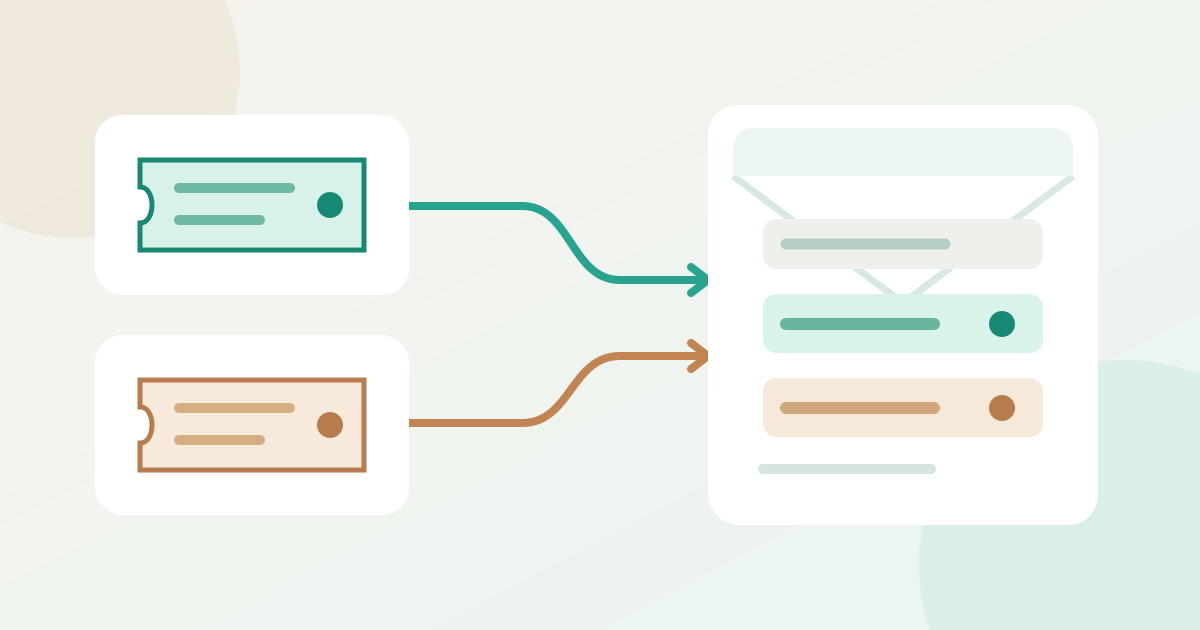
Keep common event facts in the shared confirmation. Put a type-specific instruction only in the block for that type: for example, a fictional Hall A arrival note for Type A and a Hall B note for Type B. Record the exact type names and the owner who confirms each instruction. A ticket-type block changes message content; it does not change the ticket’s admission rights. If the provider lacks this control, use its supported event-specific or follow-up route instead of promising a per-type email.
2. Add the targeted content
In Ticket Tailor, the cited guide places Conditional content under Event confirmation: add a block, select the ticket type or types, enter the content and save. EventNook documents a different Approved Order confirmation editor, where a content block can be applied to selected tickets. Use only your provider’s actual controls. Ticket Tailor says its conditional content appears once per ticket type in an order, even if that type has multiple tickets. That is a provider-specific rendering rule, not a guarantee for every system.[1][3]
3. Preview the combinations and recipient
Use supported previews or authorized test orders for Type A only, Type B only, both types together, and two tickets of Type A. Check that each relevant block appears, unrelated instructions do not, and the shared facts remain visible. Confirm the actual recipient and number of messages. Ticket Tailor says its Event confirmation goes to the buyer, not to individual attendee addresses added to tickets; do not tell every holder to expect a separate message unless your platform verifies that. Save the tested version and name an owner to recheck it when ticket types or arrival details change.[2]
| Controlled order | Content to verify |
|---|---|
| Type A only | Shared facts + A block; no B block |
| Type B only | Shared facts + B block; no A block |
| A and B / two A | Correct blocks, repetition and actual recipient |
Sources and further reading
- Can I send event information per ticket type?Ticket Tailor · Accessed
- How can I edit my Event confirmation email?Ticket Tailor · Accessed
- Send Tailored Confirmation Emails for Each Ticket TypeEventNook · Accessed