When to close event registration: a deadline planning worksheet
There is no universal “close registration three days before” rule. A catered conference may need a final meal count and badge roster well before doors open. A simple online session may accept sign-ups much later. Choose a cutoff by working backward from what your team must finish, then make its date, time zone and after-close path obvious to attendees.
Boletolibre editorial team
Published
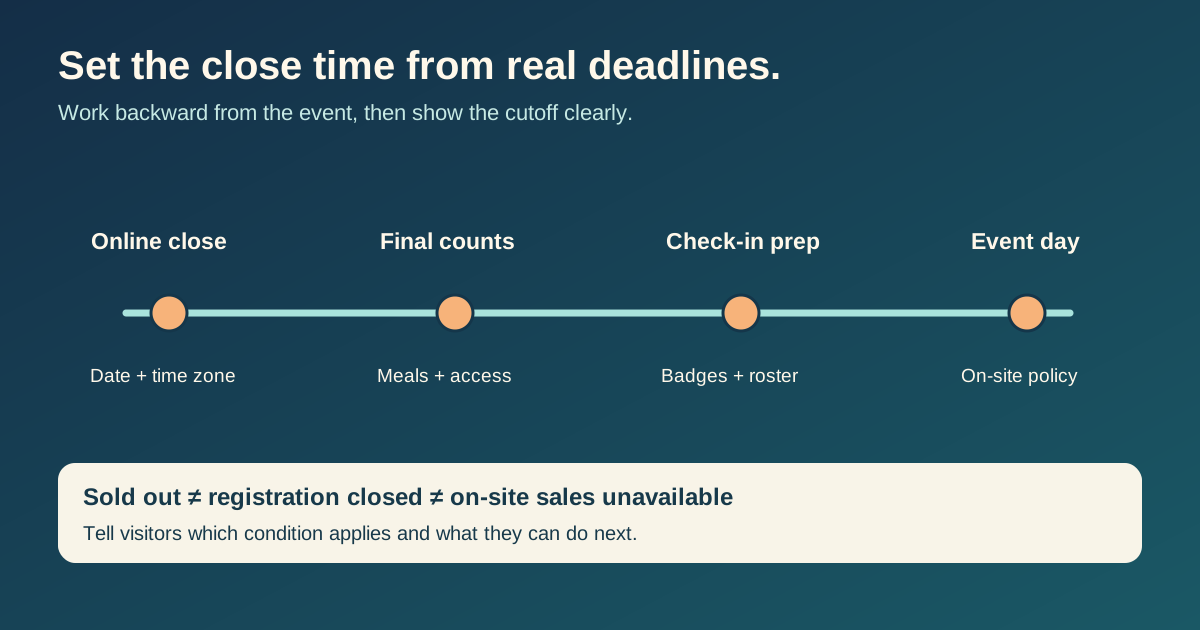
Work backward from the first immovable handoff
List the final dates for meals, badges, security rosters, accessibility arrangements, ticket delivery, seating and check-in imports. Ask each owner how much time they need after the last online registration arrives. The earliest safe handoff determines the online cutoff unless you have a documented late-add process. Cadmium's planning guide says there is no exact number of weeks that fits every event; capacity and session availability also matter.[2]
| Input | Question for owner | Decision |
|---|---|---|
| Catering | When is the guaranteed count due? | Can late registrants be served? |
| Badges and check-in | How long to print and sync? | Can staff add a person on site? |
| Capacity and sessions | What inventory remains? | Close a sold-out option without pretending the whole event ended |
| Accessibility needs | When can requests still be met? | Explain the request path after the online cutoff |
Worked example: a hypothetical event on July 17 needs a meal count by July 15 at noon, and the catering lead needs 18 hours to reconcile registrations. That path would require a cutoff no later than July 14 at 18:00 in the event's named time zone. Another dependency may require an even earlier time. These are example inputs, not a recommended universal lead time.
Keep closing, selling out and walk-ins separate
A scheduled close means the online form stops accepting new registrations at a stated time. Sold out means the approved capacity or ticket allocation is exhausted; it can happen earlier. On-site registration is a separate policy that depends on remaining inventory, staffing, payment and check-in capacity. Do not leave the button active if the back office cannot honor the booking. Do not label an event “sold out” merely because online sales closed.
- If specific sessions fill first, show their actual availability while keeping other valid options available.
- If online sales close but walk-ins are possible, state the conditions and whether a place is guaranteed.
- If no admissions remain, show sold-out status and a waitlist only if one really exists.
- If registration is closed for production, say when it closed and give a useful contact or update path.
Schedule the cutoff and show it in the event time zone
Planning Center's product guide shows a scheduled open and close date/time and displays those times on the registration page. Your platform may use different controls; verify its actual time-zone setting and whether the close is automatic. Put the same full date, local time and named event time zone in the event page, ticket page, reminder and closed state.[1]
Test the boundary behavior in the platform's normal preview or controlled workflow: before the cutoff, at the cutoff, and after it. The closed page should retain the event facts, explain what is no longer available, and link to the real next action. An organizer may still need to resolve payment-pending or previously submitted registrations after new sign-ups stop.
Record who approved the decision
Use one row per operational dependency. Include owner, latest input deadline, lead time, proposed cutoff, late-add policy and attendee message. Review the earliest calculated cutoff with all owners, then record one approved public time. If a vendor deadline changes, re-evaluate the public cutoff before changing it.
Download the event registration cutoff planner with worked example (CSV)
Review the published page and automated messages after the scheduled close. The operational plan and the attendee-facing words should describe the same state.
Sources and further reading
- Automatically Open & Close RegistrationsPlanning Center · Accessed
- Event Planning: When to Open and Close RegistrationCadmium · Accessed