On-demand attendee badge printing at event check-in
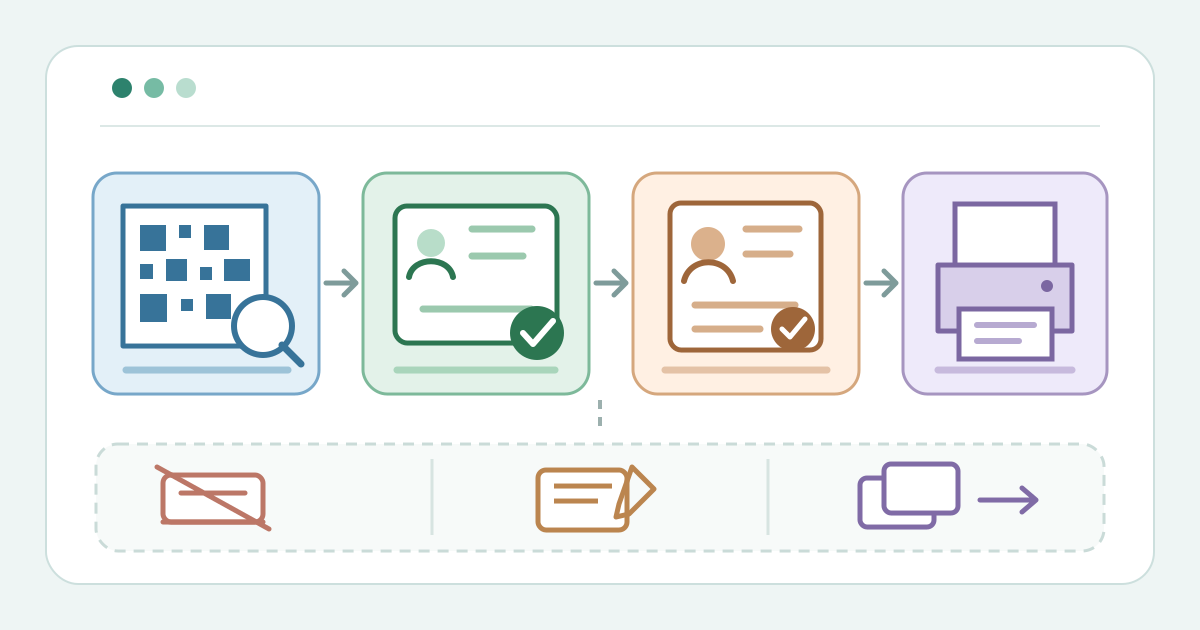
Printing badges at registration joins an attendee lookup, a badge template, a printer and a handoff. Decide which action actually marks admission in your platform before doors open. A badge may identify a delegate without proving that a ticket was accepted. The desk must be able to recover from a misprint without creating another check-in.
Boletolibre editorial team
Published
Define the badge and its source fields
Download the badge-printing preflight, proof and reprint card (Markdown, English)
Decide what the badge needs to show: identity, ticket type or an event-specific access cue. Approve the source field for each printed line. Ticket Fairy lets organizers map company and job-title lines from checkout answers and preview the ticket type; Eventleaf describes badges with attendee name, company or photo. Neither example means every badge needs every field. Proof a long name, missing optional value, accented characters and the actual ticket types. Check legibility and truncation before choosing the final stock.[1][2]
Set up and proof the printer
Pair each desk with the printer it will use and load the selected badge stock. Check size, orientation and output with a sample, then inspect alignment, readability and any scannable code with the real reader. Eventleaf explicitly calls for a sample print and lists connection, media and layout checks when output fails. Cvent’s rented Event in a Box guide includes network and media-calibration steps for that kit. Follow the instructions for your own devices; do not transfer a vendor’s printer settings to other hardware.[2][4]
Rehearse lookup, check-in and printing
Use a controlled test ticket for the correct event and date. Find it by the supported search or scan route and verify the record before admitting anyone. The order differs: Ticket Fairy says scanning at its registration desk checks the ticket in and opens a badge; Eventleaf can print automatically when check-in completes if its setting is on; Cvent OnArrival can show badge fields after check-in and let staff choose Print Badge or Skip. Record what your configuration actually does, including whether printing and admission are separate. Reopen the attendee record to confirm check-in; paper emerging is not proof.[1][2][3]
Run the live desk handoff
At arrival, select the exact attendee and inspect the event, date, ticket state and applicable entry rule. Follow the rehearsed check-in and print sequence. Read the badge before handing it over, and route a name or role correction through the authorized registration record. If the system refuses the ticket, stop the print path and use the exception desk. Ticket Fairy’s guide shows a refused ticket receiving no badge in its own desk. Do not promise entry because a badge exists; verify the actual entitlement.[1]
Separate a print fault from an admission fault
If nothing prints, inspect the recorded check-in state first. A second scan can become another admission attempt rather than a print retry. Check the selected printer, media and layout; Eventleaf names these as troubleshooting points. Use a print-only retry if your provider supports one, or send the case to the desk lead. For incorrect text, verify the approved source value and proof a corrected badge. Keep spoiled output from reaching another attendee, and record the defect for the next shift.[2]
Control reprints and close the shift
Before printing a replacement, find the original record and record why another copy is needed. Ticket Fairy documents a Print again action that stores a reason with its badge history; other providers may differ. Check whether the badge itself carries any access function, and use the event’s lost-item process for the previous copy. Never assume that a reprint disables it. Verify the ticket’s admission state after the action, note who printed the replacement, and hand over stock levels and unresolved print faults.[1]
Sources and further reading
- Check in attendees and print name badges at your event registration deskTicket Fairy Guides · Accessed
- How to print attendee badgesEventleaf How To Guides · Accessed
- Checking In Attendees with OnArrival Premium on an iOS DeviceCvent Knowledge Base · Accessed
- Setting Up Your iPad, Zebra Printer, and OnArrival App to Use with a Rented Event in a BoxCvent Knowledge Base · Accessed