How to duplicate a ticketed event and check the new setup
Duplicating an event can save setup time, but the next edition still needs its own review. Treat the copy as a draft: platforms carry different fields forward, and the previous event’s settings may be wrong for the new date.
Boletolibre editorial team
Published
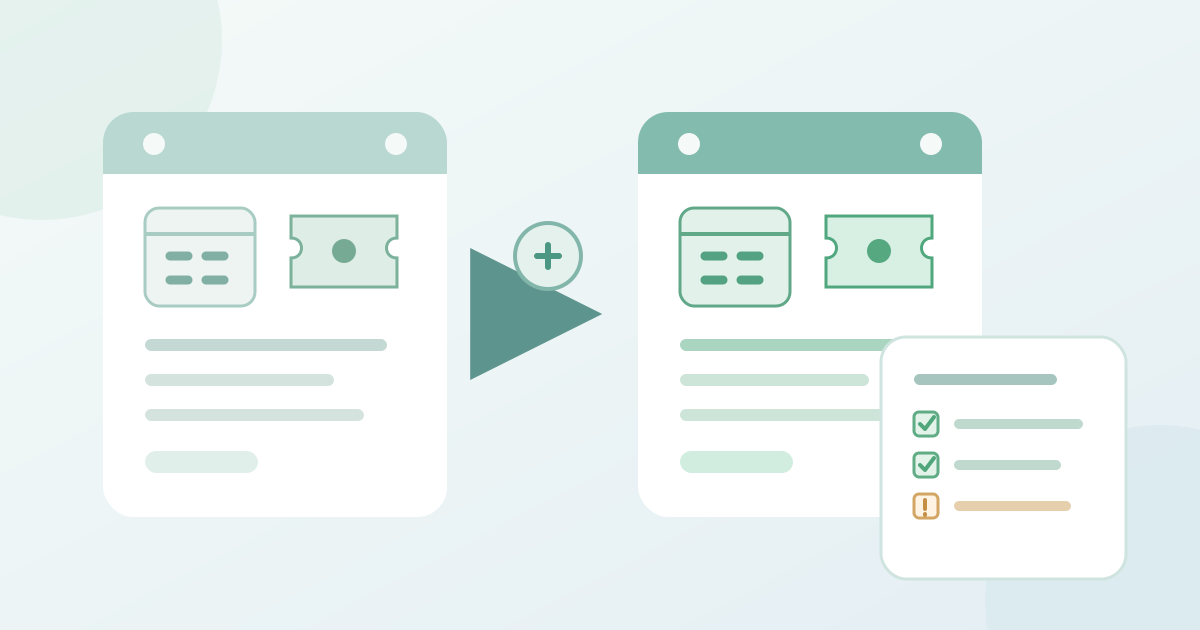
1. Copy the closest source event
Download the source-vs-new-event check card (Markdown, English)
Choose a source event with the closest approved ticket structure. Use your provider’s clone or duplicate control and open the new draft. In Showpass, Clone opens a prefilled Edit Event page. Keep source and new event open side by side; note their identifiers so the original is not edited by mistake.[1]
2. Compare the new draft with the plan
Check the new date, start and end time, time zone, and venue. Compare each ticket type, price, capacity, and sales window with the new plan. Review questions or attached forms, access links, confirmation or notification text, and publication state. On the comparison card, mark each field copied, missing, or intentionally changed. On Peatix specifically, an attached form is not automatically carried over; enable it again if this edition needs it.[2]
3. Check the buyer view and publish
If your provider offers a buyer preview, open it and check the displayed date, ticket availability, and checkout questions without placing an unapproved live order. Otherwise, inspect those fields in the organizer draft. Assign an owner to every mismatch and recheck after correction. Confirm the original event remains unchanged. Publish only the reviewed new draft, then immediately open its public buyer page to verify the date, visible ticket options, and questions. Keep the comparison card with the edition’s setup record.
Sources and further reading
- Organizer guide: Cloning or duplicating an eventShowpass Support · Accessed
- How to duplicate an eventPeatix Organizer Help · Accessed