How to give a team member access to manage event tickets
A person who edits ticket types or helps with orders needs a different event-platform assignment from someone who only scans at the gate. Define the work and the event before sending an invitation. The platform’s role name alone does not prove what the person can see or change.
Boletolibre editorial team
Published
1. Write down the exact ticketing assignment
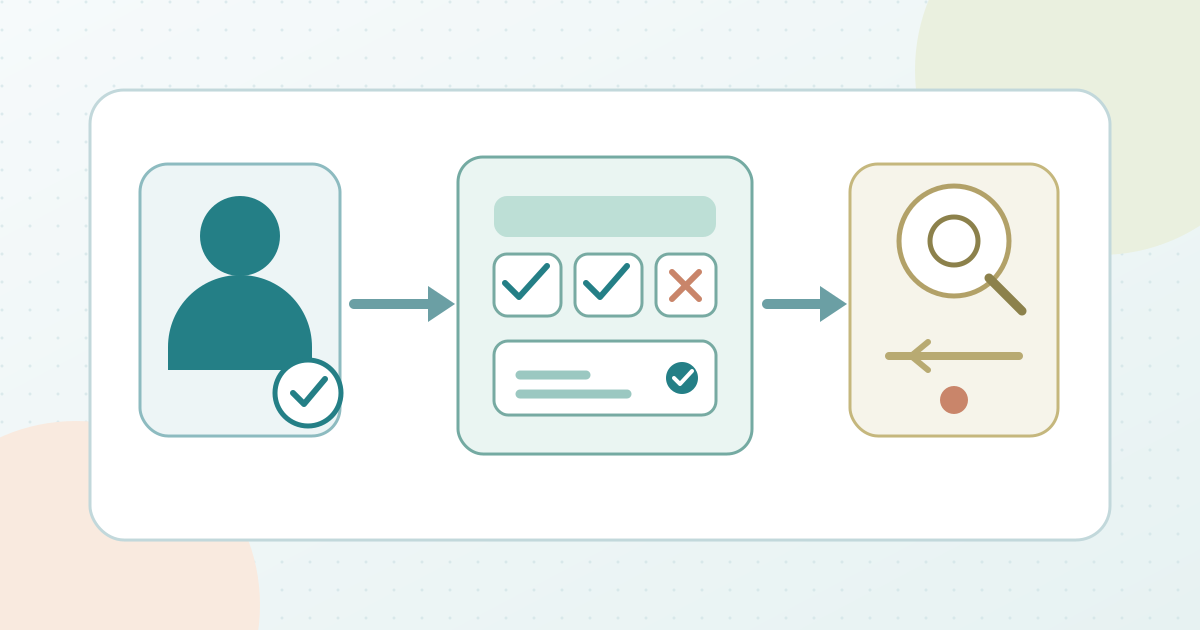
Name the event or occurrence, the responsible person, the work period and the particular actions required: for example editing ticket types, handling orders or viewing an attendance list. Mark sales reports, refunds, event publishing and scanning separately instead of bundling them under “ticketing.” Have an authorized account owner approve the requested scope. The worksheet records role and event references, not a real attendee record, invitation URL or password.
Download the ticketing-team access worksheet (Markdown, English)
2. Compare the available permission scope
Inspect the provider’s role options before inviting. Eventbrite says its Admin role covers the whole organization; a custom role may be paired with Limited event access for chosen events. Humanitix separates selected-event access into levels that include event editing, orders and attendees, finances and reports, and scanning. Peatix describes a group co-organizer who can edit event pages, manage ticket sales and access sales and attendee information. That group-wide grant may be broader than a single ticketing task. Do not claim every provider can create the same narrow role; if the available grant is too broad, use a different authorized workflow or escalate the assignment decision.[1][2][3]
3. Invite the person through the supported route
Create the necessary role first where the platform requires it. In Eventbrite, the organizer creates a role in Team management before inviting a user and can choose Limited event access during the invitation; the recipient signs in to accept. Humanitix shares from Account > Permissions to a separate user account and lets the owner choose specific events and access level. In Peatix, a prospective group co-organizer first follows the group, then an organizer assigns that follower the co-organizer role. These are examples, not a common menu path. Send an invitation only to the intended person through the platform’s supported flow, and record its pending or accepted state without copying an access link into the worksheet.[1][2][3]
4. Check the accepted account, not just the invitation
Ask the person to sign in with their own account and open the intended event. Check that they can carry out a harmless representative task, such as opening the ticket-type editor or locating an authorized order view, without changing a live ticket. Confirm whether other events, finance views, attendee information or account settings are visible. A successful invitation is not proof that the event or action is available: Eventbrite keeps invitations pending until accepted, and Humanitix says existing users may need to refresh or sign in again to see shared events. Record observed access and the person who reviewed it; keep buyer information out of the test record.[1][2]
5. Resolve gaps and close the assignment
If an event is missing or an unrelated view is present, compare the saved event selection and role permissions with the original request. Recheck with the assigned person after a supported change, rather than assuming the label fixed it. At the end of the work period, use the provider’s supported user or permission controls to remove the grant, then verify what the former team member can still reach. Eventbrite documents editing or deleting assigned users; Humanitix documents editing or deleting shared permissions; Peatix documents removing a group co-organizer from the follower list. Record the closure owner and result. Keep gate-device scan filters and event-platform account permissions as separate checks.[1][2][3]
Sources and further reading
- Manage roles and permissionsEventbrite Help Center · Accessed
- How to share event access with another user or teamHumanitix Help Centre · Accessed
- How to manage events with multiple users: Adding co-organizersPeatix Organizer Help · Accessed