How to set ticket quantity increments at event checkout
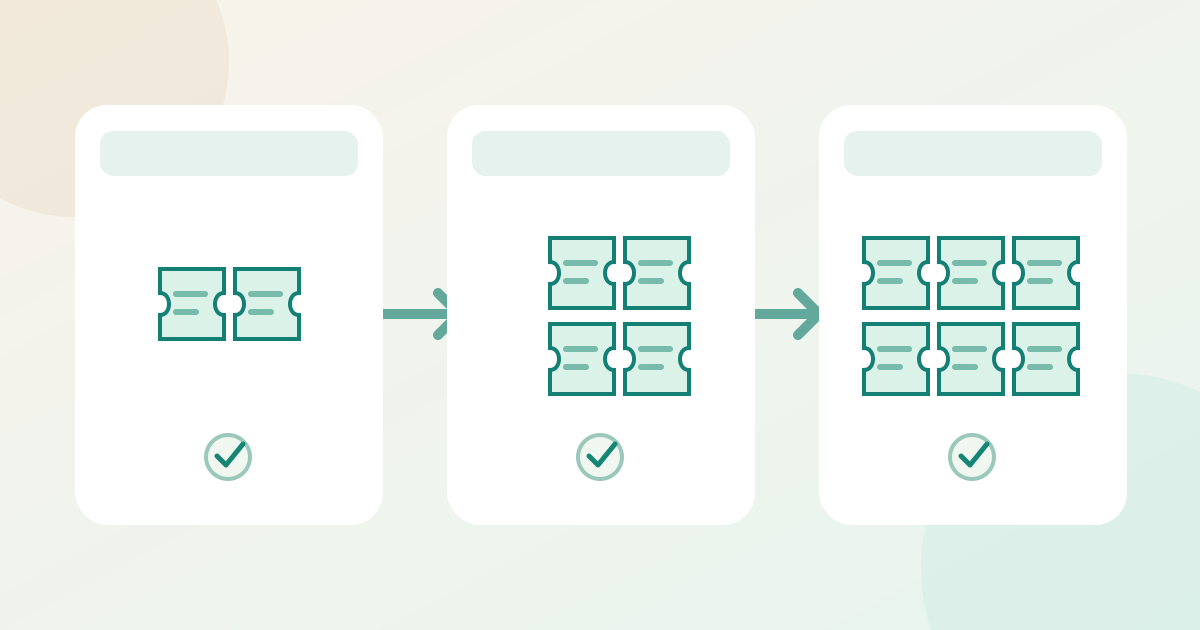
A buyer selecting tickets for a pair or group should see quantities that match the offer. A quantity increment changes the selector’s steps; it is different from a minimum purchase, maximum purchase or stock limit. Check your provider’s actual control before promising that buyers can select only full groups.
Boletolibre editorial team
Published
1. Define the offer and allowed counts
Download the quantity-step test card (Markdown, English)
Write down the intended counts before editing: for a pair offer, perhaps 2, 4 and 6 tickets, but not 1 or 3. State whether the displayed price is per ticket or for a package and how many admissions the order should issue. Keep this distinct from one group credential that admits several people. If the provider has no increment control, choose a supported, clearly described package instead of assuming a minimum setting produces multiples.
2. Set the ticket-type step where supported
EventCreate documents separate Minimum, Maximum and Interval fields in a ticket type’s advanced options; its Interval changes the quantity dropdown. Howler documents a Selection increment in its ticket-type advanced settings and, in its own paired-ticket example, stresses that each attendee should hold an individual ticket. Follow only the controls your provider offers. Record the edited type, step, minimum, maximum and current available quantity before saving; do not change total inventory merely to create a selector step.[1][2]
3. Preview the buyer and admission records
In a buyer preview or authorized test checkout, try a count below the first allowed quantity, each expected step, a number between steps and one above the maximum. Test a mixed cart if other ticket types can be purchased together. Confirm the selectable numbers, total shown, order quantity and resulting tickets; do not infer one ticket or QR per person from the selector alone. Recheck when remaining stock is smaller than a full step, because the displayed choice may depend on the provider’s inventory rules. If the event is live, compare a new test order with an existing order without altering the latter. Name the person who approves the buyer wording and fixes failed cases before promotion.
| Test selection | Verify in buyer view and order |
|---|---|
| Below first step | Unavailable or blocked as intended |
| Allowed steps | Correct count, total and issued tickets |
| Between steps / over maximum | Unavailable or blocked as intended |
| Mixed cart / low stock | Actual provider behavior recorded |
Sources and further reading
- Editing Ticket Quantities and Intervals in Your Event DashboardEventCreate · Accessed
- Ticket Type SettingsHowler · Accessed